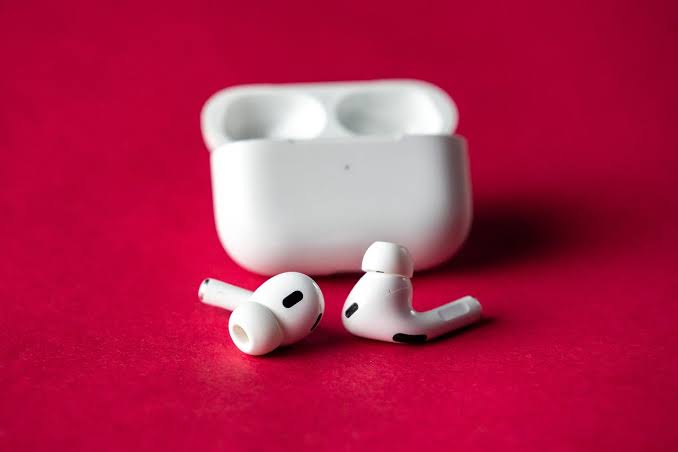
If your AirPods will not pair, charge, switch devices, or play audio correctly, a reset can clear the problem fast. This guide explains how to reset AirPods without guessing which button to press or how long to wait. You’ll start with a restart, remove the AirPods from your device and Apple Account, then use the correct factory reset method for your model. The steps cover AirPods, AirPods Pro, AirPods 4, AirPods Pro 3, and AirPods Max, so you can reconnect cleanly or prepare them for a new owner.
When To Reset Your AirPods And What A Reset Does
You should learn how to reset AirPods when normal fixes do not solve pairing, charging, or sound problems. A reset clears saved pairing data and returns the AirPods to factory settings. It does not repair damaged batteries, blocked speakers, or a broken charging case.
Use this quick check before you reset AirPods:
| Situation | Best action |
|---|---|
| Audio cuts out once | Restart first |
| AirPods will not connect to iPhone, iPad, Mac, or Android | Reset after unpairing |
| One AirPod does not charge | Clean contacts, charge fully, then reset |
| You plan to sell or give them away | Factory reset and remove from your Apple Account |
| AirPods show the wrong owner or device | Forget the device, then reset |
If you searched how to reset AirPods because they keep reconnecting to the wrong device, the factory reset usually gives you the cleanest start.
Restart Your AirPods First For Minor Glitches
A restart matters because it fixes temporary Bluetooth and charging-case errors without deleting your pairing. Before you follow the full how-to-reset-AirPods process, try this lighter step.
For AirPods or AirPods Pro, place both earbuds in the charging case. Close the lid. Wait at least 10 seconds: 30 seconds is better if the issue involves charging or switching devices. Open the lid, keep the AirPods near your phone, and test them again.
For AirPods Max, place the headphones in the Smart Case for a few seconds, then remove them. If they still lag, fail to pair, or do not respond, press and hold the Digital Crown and noise control button until the status light flashes amber. Release before it flashes white if you only want a restart.
This restart step often solves brief audio dropouts. If it does not, continue with how to reset AirPods fully.
Unpair And Remove AirPods From Your Apple Account
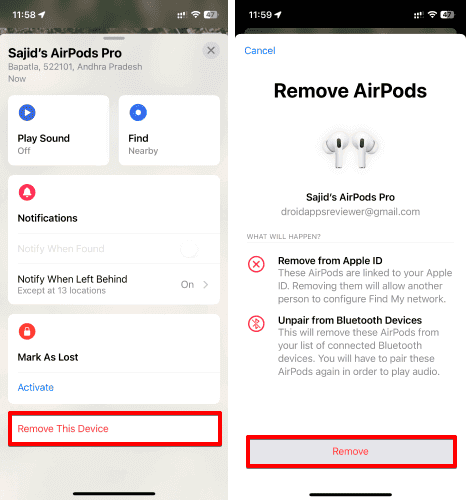
Unpairing matters because your iPhone, iPad, Mac, and Apple Account may still remember the old AirPods profile. If you skip this step, your reset AirPods may reconnect with the same bad settings.
On iPhone or iPad:
- Open Settings.
- Tap Bluetooth.
- Find your AirPods in the device list.
- Tap the More Info button next to them.
- Tap Forget This Device.
- Confirm your choice.
If the AirPods appear in the Find My app, check whether they still show under your devices. Removing them helps when you sell them, give them away, or pair them with another Apple ID.
On a Mac, open System Settings > Bluetooth, select your AirPods, then choose Forget This Device or Remove.
This step is a key part of how to reset AirPods because it separates the earbuds from the account data that can block a fresh setup.
Factory Reset AirPods, AirPods Pro, And AirPods 4
The factory reset is the main step in how to reset AirPods. The exact motion depends on your model, so match your AirPods before you press, hold, or tap anything.
| Model | Reset action | Status light result |
|---|---|---|
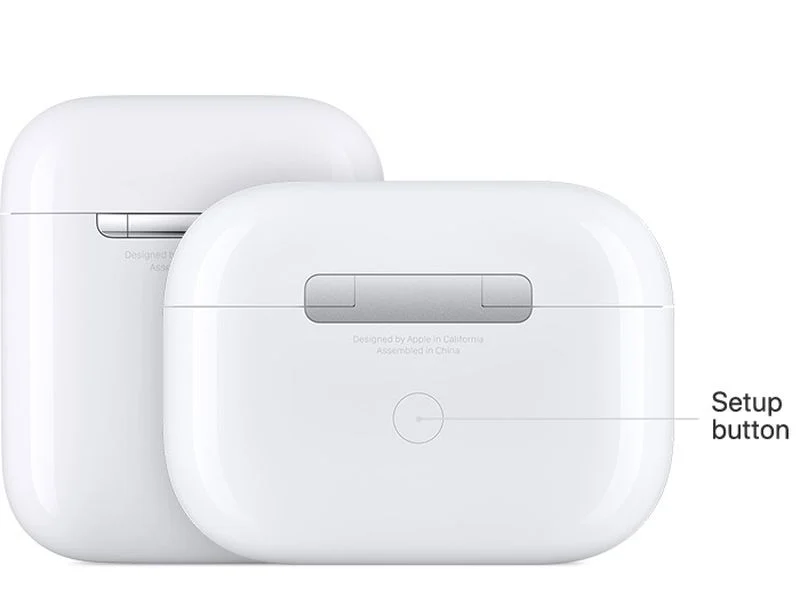
| AirPods 1, 2, or 3 | Open the lid, then hold the setup button on the back for about 15 seconds | Amber, then white |
| AirPods Pro 1 or 2 | Open the lid, then hold the setup button on the back for about 15 seconds | Amber, then white |
| AirPods 4 | Open the lid, then double-tap the front of the case three times | Amber, then white |
| AirPods Pro 3 | Open the lid, then double-tap the front of the case three times | Amber, then white |
For AirPods 1–3 and AirPods Pro 1–2:
- Put both AirPods in the case.
- Close the lid for about 30 seconds.
- Open the lid.
- Press and hold the setup button on the back of the case.
- Wait until the light flashes amber, then white.
- Release the button.
For AirPods 4 and AirPods Pro 3, close the lid for 30 seconds, open it, then double-tap the front of the case three times. Watch for amber, then white. That light pattern confirms you know how to reset AirPods for newer case designs.
Reset Or Restart AirPods Max
AirPods Max use physical buttons instead of a charging case, so the steps to reset AirPods differ. Charge them for a few minutes first. A low battery can interrupt the reset and leave you with the same connection problem.
To restart AirPods Max, press and hold the Digital Crown and the noise control button until the status light flashes amber. Release the buttons at that point.
To factory reset AirPods Max, keep holding both buttons for about 15 seconds, until the status light flashes amber and then white. The white light means the headphones are ready to pair again.
Use the factory reset when AirPods Max will not connect, keep dropping audio, or need a new owner. Use the restart when you only see a short delay, volume issue, or one-time Bluetooth glitch. This distinction prevents unnecessary setup work.
Reconnect Your AirPods After The Reset
Reconnection matters because a successful reset only clears the old data. You still need to pair the AirPods again.
For iPhone or iPad, keep the AirPods in the case and open the lid near the device. For AirPods Max, hold the headphones near the device. Wait for the setup card, then tap Connect. Follow any on-screen steps for Siri, noise control, spatial audio, or automatic switching.
For Mac, go to System Settings > Bluetooth, open the AirPods case or hold AirPods Max nearby, then select Connect.
For Android, Windows, or other Bluetooth devices, put the AirPods in pairing mode after the reset. Then open Bluetooth settings on that device and choose your AirPods.
After you reconnect, test audio, microphone input, charging, and automatic ear detection. That test confirms the how to reset AirPods process worked.
Troubleshoot If Your AirPods Still Won’t Reset Or Connect
If you followed how to reset AirPods and they still fail, check power, software, Bluetooth, and physical contacts. Most stubborn cases come from low charge, dirty case pins, or an outdated phone.
| Problem after reset | What to try next |
|---|---|
| No amber or white light | Charge the case and AirPods for 20–30 minutes |
| One AirPod is missing from Bluetooth | Clean the stem and case contacts with a dry, lint-free cloth |
| Setup card does not appear | Turn Bluetooth off and on, then restart your iPhone |
| AirPods connect but audio fails | Select them manually in Control Center or sound settings |
| AirPods keep switching devices | Disable automatic switching on devices you do not use |
| Firmware seems old | Keep AirPods near a charging, Wi-Fi-connected Apple device |
Also update your iPhone, iPad, or Mac. AirPods firmware installs automatically, but the AirPods must be charging and near a connected Apple device.
If the case never shows a light, the battery or case may need service. If you plan to sell them, do not hand them over until they reset and no longer appear under your Apple Account.
Now you know how to reset AirPods, restart them, remove them from your account, and reconnect them cleanly. Start with the lightest fix, then use the model-specific reset only when needed. That order saves time and avoids repeat pairing problems. Mac pairing issues can often be resolved by a full AirPods reset and re-pairing.
How to Reset AirPods: Frequently Asked Questions
When should I reset my AirPods?
Reset your AirPods if they won’t connect, keep dropping audio, fail to charge properly, or you plan to sell or give them away. Resetting clears saved pairing data and restores factory settings but doesn’t fix hardware damage.
How do I restart AirPods to fix minor glitches?
Place both AirPods in the charging case and close the lid for at least 10-30 seconds. Then open the lid near your device and test again. For AirPods Max, press and hold the Digital Crown and noise control button until the light flashes amber, then release.
What is the correct factory reset process for AirPods 4 and AirPods Pro 3?
For AirPods 4 and AirPods Pro 3, close the lid for 30 seconds, open it, then double-tap the front of the case three times. The status light will flash amber, then white, indicating a successful factory reset.
How do I unpair and remove AirPods from my Apple account?
On your iPhone or iPad, go to Settings > Bluetooth, tap the More Info icon next to your AirPods, then select Forget This Device and confirm. Also, remove them from the Find My app if listed to fully disconnect from your Apple account.
How do I reconnect my AirPods after a reset?
Keep the AirPods in their case and open the lid near your iPhone or iPad. When the setup card appears, tap Connect and follow on-screen instructions. For Mac or other Bluetooth devices, open Bluetooth settings and select your AirPods to pair again.
What should I do if my AirPods still won’t reset or connect after following steps?
Ensure your AirPods and case are fully charged, clean charging contacts, restart your device, update your device software, and keep AirPods near a Wi-Fi-connected Apple device to update firmware. If problems persist, service may be needed.