
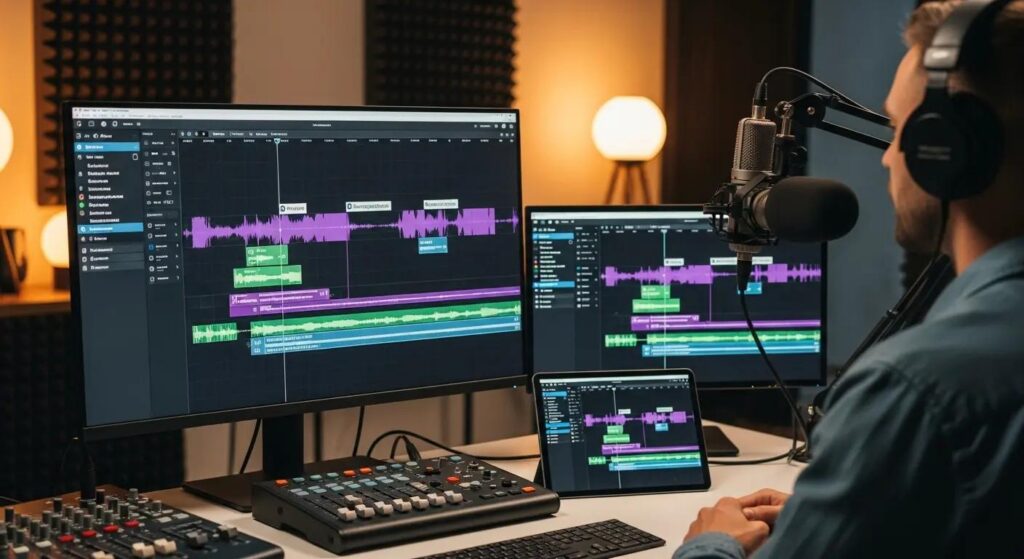
Poor audio kills content faster than anything else. A muffled podcast, a noisy interview recording, a classroom lecture buried under HVAC hum, listeners tap out within seconds. That’s exactly the problem the Adobe audio enhancer was built to solve. Part of the Adobe Podcast suite, this AI-powered, web-based tool automatically removes background noise, reduces echo, balances volume, and sharpens vocal clarity, no mic upgrade or audio engineering degree required. If you record speech in any non-studio environment, this tool deserves a serious look.
What Is Adobe’s Audio Enhancer and Who Is It For?
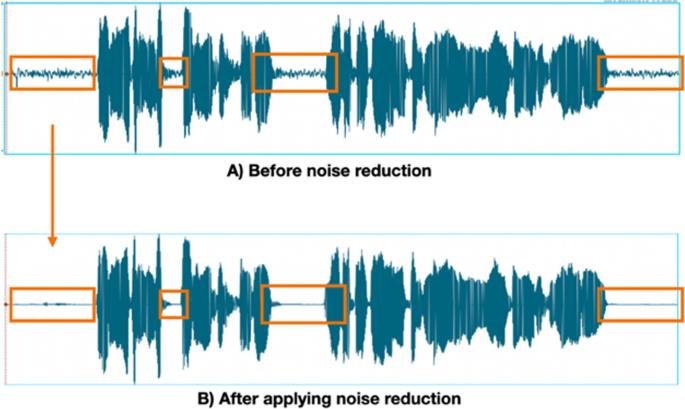
The Adobe audio enhancer, officially called Enhance Speech inside Adobe Podcast, is a cloud-based AI tool that processes spoken audio to remove background noise, reduce room echo, level volume, and boost vocal clarity. It runs entirely in your browser, so there’s nothing to install.
It’s built for people who record speech in real-world, imperfect conditions:
- Podcasters and content creators who record at home or on location
- Educators and trainers producing course content or lecture recordings
- Marketers and PR teams capturing interviews or branded audio
- Remote workers cleaning up Zoom or Teams call recordings
- Voiceover artists working without soundproofed studios
The Adobe audio enhancer is not a music mastering tool. Its AI is trained specifically on human speech, so it excels at making voices sound clear and natural, not at fixing distorted instruments or heavily damaged audio.
Key Features That Set It Apart
| Feature | Details |
|---|---|
| AI Noise Reduction | Automatically removes background noise, traffic, HVAC, chatter, from voice recordings |
| Speech Enhancement | Boosts vocal frequencies and balances audio levels for natural clarity |
| Adjustable Strength | Premium slider lets you control enhancement intensity (best results reported at 30–50%) |
| Video File Support | Processes MP4, MOV, and other video formats, not just audio files |
| Bulk Upload | Upload multiple files simultaneously for batch processing |
| Real-Time Preview | Hear improvements instantly before downloading, toggle between original and enhanced |
| Cloud-Based Processing | Adobe’s servers handle the heavy lifting: most files process in under 60 seconds |
| Browser-Only Workflow | No software install needed: works on any modern device with a stable connection |
The adjustable strength slider is a standout feature for Premium users. Free-tier users get a single enhancement pass, while paid users can fine-tune to preserve natural vocal warmth rather than pushing the AI to extremes that sometimes produce a slight robotic quality.
How to Enhance Your Audio with Adobe in 4 Simple Steps
Using the Adobe audio enhancer takes less than five minutes from upload to download. Here’s the exact workflow:
Step 1, Sign in and open Enhance Speech
Go to Adobe Podcast and sign in with your free Adobe account. Navigate to the Enhance Speech workspace. No subscription is required to access the basic tool.
Step 2, Upload your file
Drag and drop your audio or video file directly into the browser. Adobe supports formats including MP3, WAV, MP4, and MOV. Free-tier users can upload files up to 30 minutes long and process up to 1 hour of audio per day. Premium users get up to 4 hours per day and files up to 1 GB.
Step 3, Let the AI process your recording
Once uploaded, Adobe’s servers analyze your file and apply the audio enhancement automatically. Processing typically takes under a minute for shorter files, though larger uploads may take a few minutes depending on file size. You don’t need to set any parameters, the Adobe audio enhancer handles noise reduction and vocal clarity automatically.
Step 4, Preview, adjust, and download
Click play to preview the enhanced version. Use the Enhanced audio toggle to A/B compare it against your original. Premium users can move the strength slider to dial in exactly the level of enhancement they want. Once satisfied, download the cleaned file and bring it into your editor, Audacity, Adobe Premiere Pro, Audition, or any other DAW.
The entire process requires zero audio engineering knowledge. You upload a noisy recording, and the Adobe audio enhancer returns something that genuinely sounds closer to a professional studio take.
Editing, Recording, and Exporting: What Else Can You Do?
The Adobe audio enhancer is one piece of a broader toolset inside Adobe Podcast. Once your audio is cleaned up, the platform offers additional production capabilities worth knowing about.
Recording
Adobe Podcast Studio lets you record solo or with remote guests directly in the browser. Adobe Podcast Studio lets you record solo or with remote guests directly in the browser, making it a practical option for corporate podcast production as well as other spoken-word content. It captures each participant’s audio as a separate track in 16-bit, 48kHz WAV, even if someone’s internet connection drops mid-session. That individual-track approach is a meaningful upgrade over tools that record a single mixed stream.
Text-Based Editing
Adobe Podcast Studio transcribes every word using the same engine that powers Adobe Premiere Pro’s transcription feature. From there, you edit audio by editing text, cut a sentence by deleting words, rearrange clips by moving paragraphs. For spoken-word content like interviews, true crime podcasts, or audio newsletters, this dramatically speeds up editing.
Exporting and Integration
Enhanced files export for use in:
- Adobe Premiere Pro and Adobe Audition for deeper post-production
- Any third-party DAW or video editor
- Direct publishing workflows for podcast platforms
One important limitation: the Adobe audio enhancer does not remove filler words (“um,” “uh,” “like”), breathing noise, or mouth clicks. Those require manual editing or a specialized tool like Cleanvoice, which also offers API integration for automated workflows. If you need that level of cleanup at scale, you’ll likely want to pair the Adobe audio enhancer with a secondary solution. After cleaning your recordings, many creators also use AI dubbing tools to translate podcasts and videos into multiple languages for global audiences.
Pricing, Pros, and Cons
Here’s a clear breakdown of what you get at each tier and where the Adobe audio enhancer genuinely delivers, and where it falls short.
Pricing and Usage Limits
| Plan | Cost | File Limit | Daily Limit | Key Restrictions |
|---|---|---|---|---|
| Free | $0 | 30 min per file | 1 hour/day | No strength slider, no batch priority |
| Premium | Paid (30-day free trial) | Up to 1 GB | 4 hours/day | Full slider control, bulk uploads, video enhancement |
The free plan is genuinely useful for occasional recordings. But if audio production is a regular part of your workflow, the 1-hour daily cap will become a bottleneck fast.
Pros
- Zero learning curve, upload a file, get cleaner audio. No manual EQ, compression, or noise gates to configure.
- Measurable quality improvement, background noise like traffic and HVAC is removed almost entirely. Bass and vocal presence noticeably improve.
- Video file support, processes MP4 and MOV alongside audio formats, which most competitors skip.
- Browser-based, works on Mac, Windows, or any device without software installation.
- Free starting point, the base Adobe audio enhancer is accessible with just a free Adobe account.
Cons
- Robotic artifacts at high enhancement levels, Adobe’s V2 update drew widespread user complaints about overprocessed vocals. Premium users can mitigate this with the slider: free users cannot.
- No filler word or breath removal, the tool doesn’t clean up “um,” “uh,” breathing noise, or mouth clicks.
- No standalone API, you can’t integrate the Adobe audio enhancer into custom pipelines or automate processing via external systems.
- Free-tier export compression, free exports may be compressed to lower bitrate audio with no adjustable quality settings.
- Internet-dependent, the cloud-based workflow requires a stable connection and means your files are uploaded to Adobe’s servers.
Conclusion
The Adobe audio enhancer delivers real, immediate results for one specific job: turning noisy speech recordings into clean, professional-sounding audio. For podcasters, educators, and content creators who don’t want to learn audio engineering, it’s one of the fastest and most accessible tools available in 2026. Where it earns caution is at the edges, heavy overprocessing at max strength, the absence of filler word removal, and a free tier that’s capped enough to frustrate serious creators. Use it for what it does well. Pair it with dedicated editing tools when you need more.