You don’t need a $60-a-month creative suite to sketch, paint, ink comics, or make polished concept art. The best free drawing software now includes pressure-sensitive brushes, layers, stabilizers, vector tools, animation timelines, and tablet support. Some apps feel friendly on day one. Others reward patience with professional control. This guide helps you choose based on your device, skill level, and actual workflow, not hype, screenshots, or feature lists that sound good but slow you down.
What To Look For In Free Drawing Software
Good drawing software should make drawing easier, not turn every brushstroke into a settings hunt. Start with the basics: brush quality, layer support, pressure sensitivity, file export options, and stability. If an app crashes after 20 layers, it’s not “free”: it costs you time.
Look for tablet support first if you use a Wacom, Huion, XP-Pen, iPad, Surface Pen, or Android stylus. Good pen input should control size, opacity, tilt, or flow without lag. Brush stabilization also matters. It smooths shaky lines and helps with inking, lettering, and clean character art.
Your file needs should guide your choice. PSD support helps if you move between apps. PNG export works for web art. SVG matters for logos and scalable graphics. Animation tools matter only if you plan to use them: otherwise they add clutter.
Also check the learning curve. The best free drawing software for a beginner may not be the same app a professional illustrator wants. A clean interface beats a giant toolbox if you only need sketching, coloring, and simple layers.
Best Free Drawing Software At A Glance
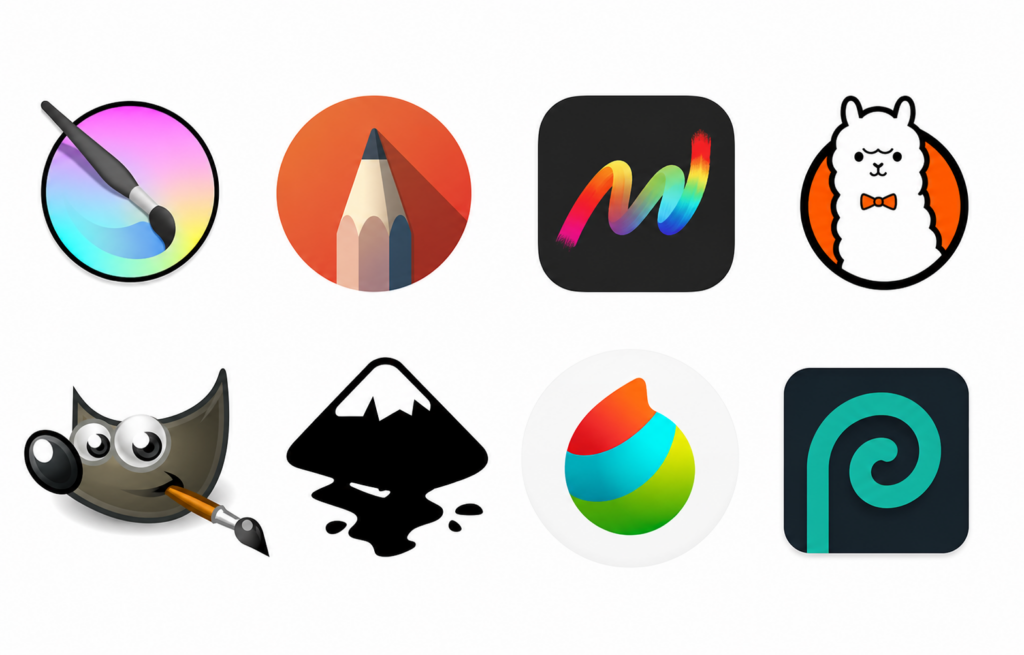
Use this quick table to narrow your options before installing anything. The best free drawing software depends less on “most features” and more on the kind of art you make.
| Software | Best For | Platforms | Key Strength | Watch Out For |
|---|---|---|---|---|
| Krita | Digital painting, comics, concept art | Windows, macOS, Linux, Android tablets | Pro brushes, layers, stabilizers, animation | Can feel heavy on older PCs |
| Sketchbook | Beginners, quick sketching | Windows, macOS, iPad, Android | Clean interface, natural pencils | Fewer advanced painting tools |
| MyPaint | Distraction-free painting | Windows, macOS, Linux | Infinite canvas, expressive brushes | Limited editing features |
| FireAlpaca | Comics, lightweight drawing | Windows, macOS | Perspective tools, simple UI | Less advanced color management |
| MediBang Paint | Manga and cloud projects | Windows, macOS, iPad, Android | Comic panels, tones, cloud brushes | Account features can distract |
| GIMP | Photo editing plus drawing | Windows, macOS, Linux | Masks, filters, PSD support | Interface takes patience |
| Inkscape | Vector art, logos, icons | Windows, macOS, Linux | SVG editing, Bézier tools | Not ideal for painterly art |
| Photopea | Browser-based PSD work | Web | No install, PSD editing | Needs internet for best use |
If you want one safe starting point, choose Krita. If you want the simplest start, choose Sketchbook. If your laptop is old, FireAlpaca or MyPaint may feel faster. That’s the practical view of the best free drawing software in 2026.
Top Free Drawing Programs For Beginners And Hobbyists
For beginners, the best free drawing software should feel inviting within the first ten minutes. Sketchbook does this well. Its pencil, pen, marker, and brush tools behave in a familiar way, and the interface stays out of sight until you need it. You can sketch characters, thumbnails, tattoo ideas, room layouts, or loose storyboards without reading a manual.
MyPaint is another strong pick if you want the feeling of paint on a blank surface. It has an infinite canvas, so you can brainstorm freely without thinking about document borders. Artists who like messy exploration often enjoy it because the app doesn’t push panels, menus, and filters into your face.
FireAlpaca deserves attention because it runs well on modest machines. It includes layers, comic panel tools, symmetry, and perspective guides. If you draw manga-style scenes or simple webcomics, it gives you useful structure without overwhelming you.
For browser work, Photopea and Pixlr help when you can’t install software on a school computer, shared laptop, or work machine. They are not pure painting apps, but they handle quick edits, layered files, and social graphics. For many hobbyists, the best free drawing software is simply the app that opens fast and lets you finish the idea before the idea fades.
Best Free And Open-Source Tools For Serious Digital Art
Krita is the standout choice for serious digital art. It is open-source, actively developed, and built around illustration rather than photo editing. You get brush engines, layer masks, blending modes, wraparound mode for textures, HDR painting support, perspective assistants, and a basic animation timeline. For concept art, character sheets, splash art, and comics, Krita is often the best free drawing software available.
GIMP is different. It is not a dedicated drawing-first app, but it is powerful for image manipulation, compositing, texture editing, and cleanup. If your art workflow includes scanned sketches, photo-bashed references, masks, filters, or color correction, GIMP can sit beside Krita rather than replace it.
Inkscape serves another purpose: vector art. Use it for logos, stickers, icons, UI assets, typography layouts, and designs that need infinite scaling. Raster painting apps create pixels. Inkscape creates mathematical paths, shapes, nodes, and curves.
A useful pro workflow is simple: sketch and paint in Krita, edit supporting images in GIMP, and build logos or clean vector marks in Inkscape. That trio covers most needs without subscriptions. If you want the best free drawing software setup for serious work, think in terms of a toolkit, not one perfect app.
How To Choose The Right App For Your Device, Tablet, And Workflow
Your device should make the first decision. A powerful desktop can run Krita comfortably with large canvases and many layers. A low-end laptop may feel better with FireAlpaca, MyPaint, or a browser tool. An Android tablet user should check whether the app supports tablet screens properly, not just phone layouts. Krita’s Android version, for example, is intended for tablets.
Tablet drivers matter too. Before blaming the software, update your Wacom, Huion, XP-Pen, Surface, or Apple Pencil settings. Test pressure, tilt, and palm rejection. If you primarily create art on an iPad, check out our guide to the best drawing apps for iPad to compare more apps optimized for Apple Pencil and touch-based workflows. Then create a practical test file: 2000 x 2000 pixels, 300 dpi, five layers, one textured brush, one ink brush, and one soft blending brush. If the app lags there, it may slow you down on real projects.
| Your Goal | Best Starting Choice | Why It Fits |
|---|---|---|
| Learn digital sketching | Sketchbook | Low friction and clean tools |
| Paint finished illustrations | Krita | Strong brush control and layers |
| Make comics or manga | MediBang Paint or FireAlpaca | Panels, tones, and perspective tools |
| Edit images and draw sometimes | GIMP | Filters, masks, and retouching tools |
| Design logos or decals | Inkscape | True vector output |
| Work without installing apps | Photopea | Browser-based layered editing |
The best free drawing software should also match your file habits. Save editable files in the app’s native format. Export PNG for sharing, JPG for small previews, PSD for cross-app work, and SVG for vector designs. Keep your brush library small at first. Too many brushes can slow your progress because you spend more time testing tools than drawing.
One overlooked factor: community support. Krita, GIMP, Inkscape, and MediBang have tutorials, forums, brush packs, and user-made templates. That support shortens the learning curve. In practice, the best free drawing software is the one you can troubleshoot quickly when a deadline, commission, or class project gets close.
Conclusion
The best free drawing software in 2026 is not one-size-fits-all. Choose Krita for the strongest all-around art tool, Sketchbook for easy sketching, FireAlpaca or MediBang for comics, GIMP for image-heavy work, and Inkscape for vectors. Test two apps, not twelve. Your best choice is the one that feels fast, stable, and natural under your hand.