
Whether you’re a student capturing lecture slides, a professional running back-to-back meetings, or a creative sketching out ideas at midnight, the right iPad note taking app can completely change how you work. But with dozens of options on the App Store, picking the best one isn’t as simple as it sounds.
This guide cuts through the noise. We tested and compared the best iPad note taking apps based on five criteria that actually matter: Apple Pencil support, organization tools, multi-device syncing, export and sharing options, and AI-powered productivity features. Whether you write by hand, type, annotate PDFs, or do all three, there’s an app on this list that fits your workflow perfectly.
1. GoodNotes 6: Best Overall iPad Note-Taking App
GoodNotes 6 earns the top spot among best iPad note taking apps, and it’s not particularly close. It strikes the rare balance of feeling like a real notebook while being packed with digital superpowers. You can combine handwritten Apple Pencil input and typed text anywhere on the same page, and move elements around freely, which very few apps let you do.
Organization is another win. GoodNotes uses a folder-and-notebook structure that feels intuitive from day one, similar to Google Drive but purpose-built for notes. You can import custom templates in dozens of textures and colors, customize ink by HEX code, and even turn images into stickers. It’s the kind of creative control that power users love and beginners don’t have to think about.
Cloud sync works across iPad, iPhone, Mac, and Windows, with iCloud and third-party storage support. One honest caveat: the handwriting-to-text conversion works, but it can be clunky and slower than just retyping your notes manually.
Pricing: Free plan available · $7.99/month or $20/year (Plus) · $20/month or $99.99/year (Pro)
Platforms: iPad, iPhone, Mac, Windows
Standout Features: AI Tools, Search, and Cross-Platform Sync
- Ask GoodNotes (AI): Summarizes notes, answers questions about your documents, and helps format content.
- Handwriting search: Finds words inside your handwritten notes with impressive accuracy across all notebooks.
- Audio recording sync: Record lectures or meetings and play them back with your notes appearing in real-time alongside the audio.
- Whiteboard mode: Infinite canvas for mind maps, brainstorming, and diagrams.
- Cross-platform sync: Seamless on Apple devices: Windows and Android require separate subscription tiers.
Best for: Students, professionals, and creatives who primarily handwrite on iPad and want the most feature-complete experience available.
2. Notability: Best for Audio-Synced Handwritten Notes
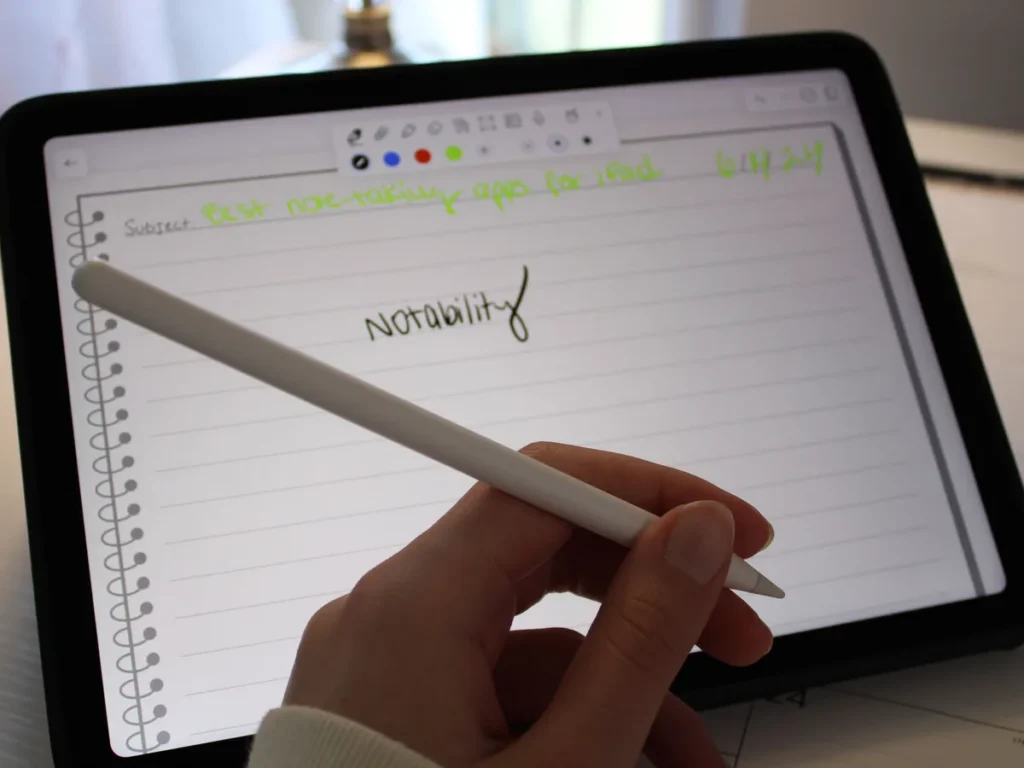
Notability’s flagship feature feels like witchcraft the first time you use it. As you write notes during a lecture or meeting, the app time-syncs your handwriting to an audio recording happening simultaneously. Tap on any word you wrote later, and the recording jumps to exactly what was being said at that moment. For students and busy professionals, that alone is worth the price.
Beyond audio sync, Notability holds its own as a full-featured iPad note taking app. PDF annotation is clean and precise, Apple Pencil response feels natural, and the multi-subject notebook system keeps your notes neatly divided. You can also insert photos, web clips, and sketches into any note.
Notability has leaned into AI more aggressively with recent updates, auto-generating summaries of handwritten notes and transcribing audio are now standard features.
| Feature | Details |
|---|---|
| Audio-handwriting sync | Yes, time-stamped to the word |
| PDF annotation | Yes |
| Apple Pencil support | Full pressure and tilt sensitivity |
| AI features | Summaries, transcription |
| Platforms | iPad, iPhone, Mac |
| Pricing | Free / ~$14.99/year |
Best for: Students in lectures, journalists, and anyone who records meetings and needs their notes and audio to stay perfectly linked.
3. Apple Notes: Best Free Built-In Option for Apple Users
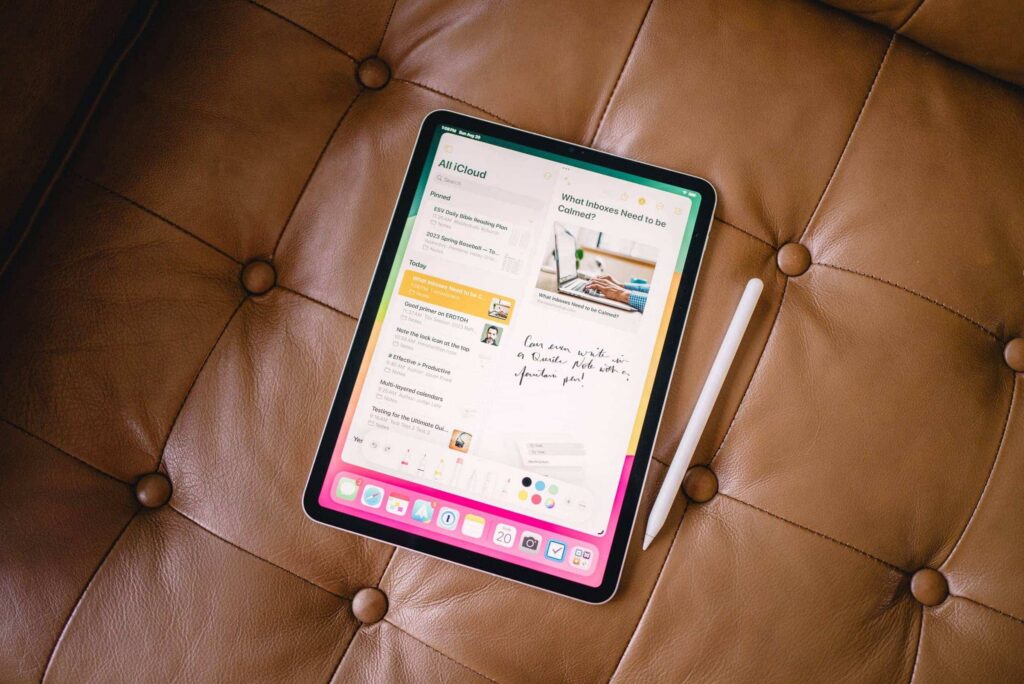
Don’t underestimate Apple Notes. It ships free on every iPad, requires zero setup, and has quietly grown into one of the most capable built-in iPad note taking apps available today.
What it lacks in formatting freedom, it more than makes up for in organization. Smart folders let you set criteria, like a specific hashtag, to automatically sort new notes as you create them. These sync instantly across every Apple device you own via iCloud. You can also use Quick Note, a system-wide feature that lets you jot something down without ever fully opening the app.
Apple Pencil support is solid for basic handwriting and sketching, and you can mix typed text with drawings in a single note. The interface is clean and distraction-free.
The catch? Apple Notes is Apple-only. There’s no Android or Windows app, and export options are limited compared to dedicated note-taking apps. But if your entire ecosystem is Apple and you want something free that just works, it’s a genuinely great pick.
Key features: Smart folders, tags, iCloud sync, Quick Note, Apple Pencil support, attachments
Pricing: Free (included with iPad)
Best for: Apple-only users who want a reliable, zero-cost note taking app with tight iOS/iPadOS integration.
4. Microsoft OneNote: Best for Cross-Platform and Team Collaboration
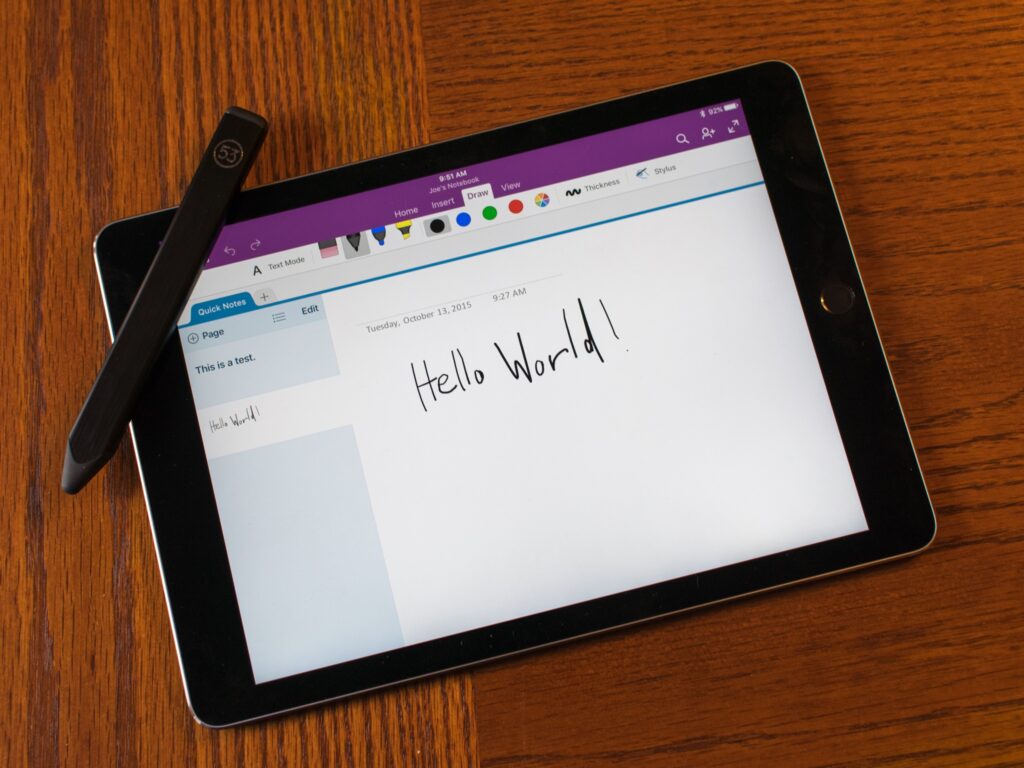
If you split your time between an iPad and a Windows PC, or work on a team with mixed devices, Microsoft OneNote is the iPad note-taking app that makes your life easiest. It’s completely free, syncs via OneDrive, and runs on iOS, iPadOS, macOS, Android, and Windows without missing a beat.
OneNote uses a section-and-page notebook model that maps well to how most people already think about organizing information. Each notebook can have multiple sections, each section can have unlimited pages, and everything is searchable. It also includes Microsoft Copilot AI tools built in, giving you smart writing assistance directly inside your notes.
Handwriting support is functional but not as refined as GoodNotes or Notability. The insert-space tool, which lets you push existing content down to add new notes in between, is genuinely useful and unique to OneNote.
For collaboration, OneNote shines: multiple users can edit shared notebooks in real time, making it a strong pick for educators, project teams, and businesses already inside the Microsoft 365 ecosystem.
Key features: Free to use, cross-platform sync, Copilot AI, real-time collaboration, rich media support
Pricing: Free (Microsoft 365 subscription expands storage)
Best for: Teams, educators, and mixed-device users already in the Microsoft ecosystem.
5. Notion: Best for Power Users Who Need Notes and Project Management
Notion isn’t just a note-taking app, it’s an entire workspace. And on iPad, it’s surprisingly capable given how feature-dense it is. If your notes inevitably turn into to-do lists, project timelines, and databases, Notion is where those workflows live together.
You can build pages that contain anything: typed notes, embedded tables, kanban boards, calendars, task lists, and linked documents. It’s genuinely flexible in a way most dedicated note-taking apps aren’t. Notion AI, built directly into the platform, can draft content, summarize pages, and auto-fill databases, which saves real time once you learn the tool.
The trade-off is a steeper learning curve. First-time users often spend more time building their system than actually using it. Handwriting and Apple Pencil support is also limited compared to apps like GoodNotes or Notability, Notion is fundamentally a typed-note and structured-data tool.
Key features: Databases, kanban boards, task tracking, Notion AI, cross-platform sync
Pricing: Free · Personal Pro $12/month · Team $18/month
Best for: Power users, project managers, and anyone who wants their notes, tasks, and documents in one unified workspace.
6. Bear: Best for Markdown Writers and Clean, Focused Note-Taking
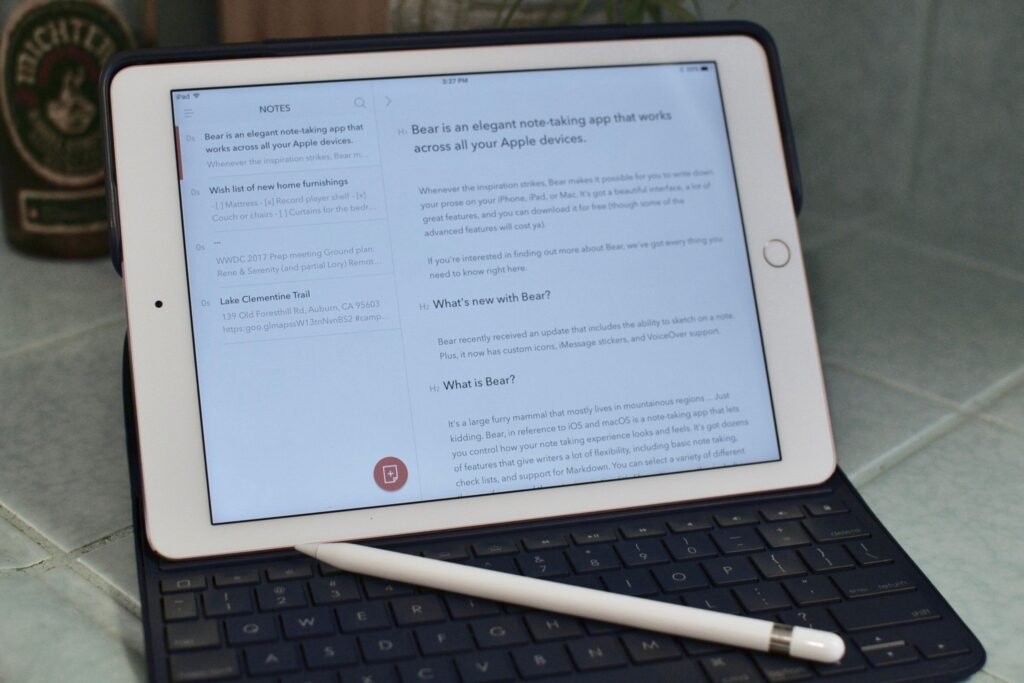
Bear is the iPad note-taking app for people who find most apps cluttered and distracting. Its design is minimal by intention, a clean three-pane layout with a distraction-free editor front and center.
The real power is under the surface. Bear is fully Markdown-based, so writers, developers, and technically-minded users can structure their notes with headers, code blocks, checklists, and formatting that exports cleanly to multiple formats. Its tagging system is one of the best in the category: nested tags (like #writing/research) let you build a flexible, folder-free organization structure.
Apple Pencil support exists, but Bear is primarily a typing-first app. If handwriting is central to your workflow, you’d be better served by GoodNotes or Notability. But for anyone who lives in plain text, Bear is hard to beat.
Bear is Apple-only, iPad, iPhone, and Mac, and syncs seamlessly via iCloud. There’s no web app or Windows/Android version.
Key features: Markdown editor, nested tagging, clean UI, multiple export formats (PDF, HTML, DOCX)
Pricing: Free · Bear Pro $2.99/month or $29.99/year
Best for: Writers, developers, and focused thinkers who prefer Markdown and distraction-free iPad note taking.
7. LiquidText: Best for Annotating and Researching PDF Documents
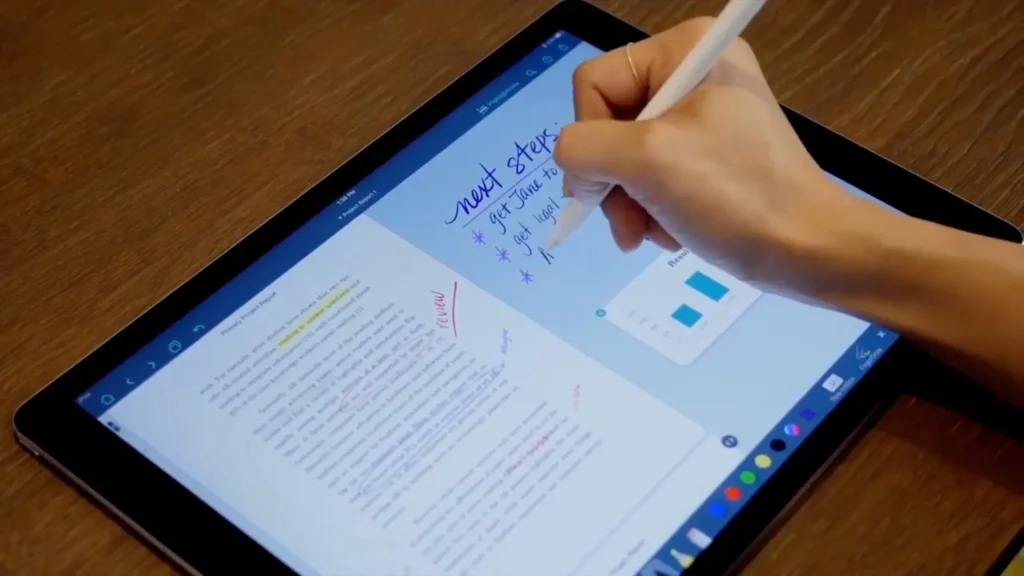
LiquidText approaches iPad note-taking from a completely different angle, it’s built specifically for deep reading and document research. If you regularly work through lengthy PDFs, legal briefs, academic papers, or research reports, this app rethinks how you interact with them.
The core concept: you annotate directly on the PDF on one side of the screen, then drag excerpts into a freeform workspace on the other side. In that workspace, you can connect excerpts with lines, group related ideas, and add your own handwritten reactions. It’s a genuinely visual way to build an argument or synthesize multiple sources.
LiquidText supports multiple simultaneous documents, so you can pull quotes from three PDFs and link them together in one project. Apple Pencil integration is excellent for annotation.
It’s not the right tool for everyday note taking, it’s specialized. But for researchers, lawyers, students writing literature reviews, or anyone tackling complex documents, there’s no better iPad note-taking app.
Key features: PDF annotation, excerpt-and-connect workspace, multi-document support, Apple Pencil
Pricing: Free (basic) · LiquidText Pro $9.99/month or $99.99/year
Best for: Researchers, law professionals, graduate students, and document-heavy workflows.
8. Craft: Best for Visually Polished Notes and Document Creation
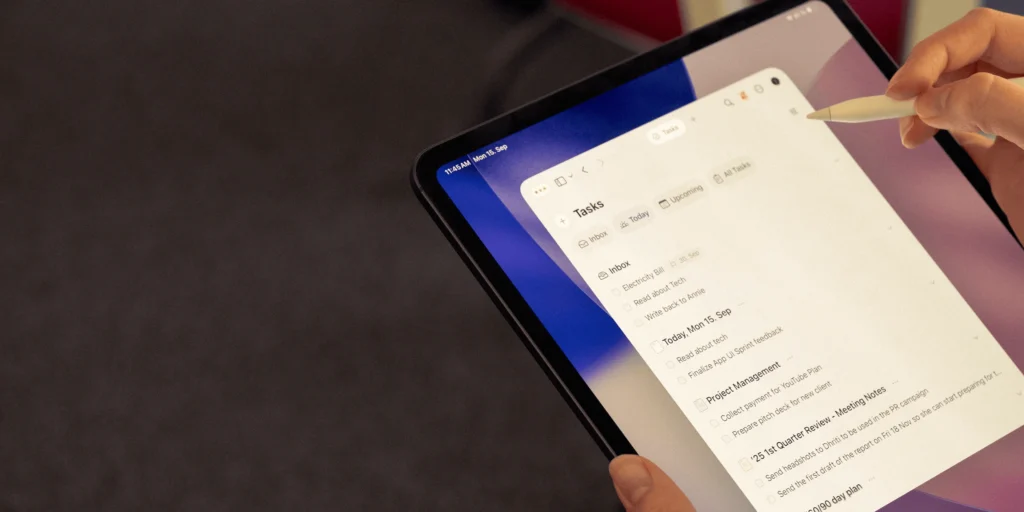
Craft occupies a unique space among iPad note-taking apps: it sits at the intersection of note-taking and professional document creation. If your notes eventually need to look good, whether that’s a client-facing brief, a team knowledge base, or a personal wiki, Craft makes that process effortless.
Content in Craft is built with blocks, text, images, embeds, checklists, tables, and more, that you can rearrange with drag-and-drop. The visual output is polished in a way that most note apps simply aren’t designed to achieve. You can share notes as a public Craft link (beautifully formatted), export as PDF or Word, or collaborate with teammates in real time.
Craft also includes built-in AI for drafting, summarizing, and editing your content. It syncs across iPad, iPhone, Mac, and has a Windows web app.
Handwriting support via Apple Pencil is limited, Craft is primarily a typed-note and structured-document tool. But as a second-brain or knowledge-base app, it’s among the most thoughtfully designed options available.
Key features: Block editor, beautiful export, real-time collaboration, Craft AI, cross-platform
Pricing: Free · Craft+ $5/month or $45/year
Best for: Professionals, teams, and individuals who want polished, shareable notes and documents.
9. Evernote: Best for Organizing Large Note Libraries Across Devices
Evernote has been a household name in note-taking for well over a decade, and its core strength remains the same: organizing massive amounts of information in a way that’s actually searchable and retrievable years later.
On iPad, you can capture typed notes, handwritten sketches, photos, audio clips, web clips, and PDF annotations, all stored in searchable notebooks with tags. The search engine is exceptionally powerful, finding text inside images and PDFs as well as standard note content. If you have years of accumulated notes spread across dozens of topics, Evernote’s organizational structure handles that volume better than most.
Recent AI updates include smarter search, note summaries, and an AI-powered cleanup tool. Web clipping via the Evernote browser extension remains one of the best in any note-taking app category.
Pricing has become a sticking point, the free plan is now quite limited, and the paid tiers are higher than competitors. But for long-term power users who’ve already built their library in Evernote, switching costs are real.
Key features: Powerful search, web clipping, multi-media notes, AI tools, cross-device sync
Pricing: Free (limited) · Personal $14.99/month · Professional $17.99/month
Best for: Long-term knowledge collectors who need to organize, search, and retrieve a large library of notes across many devices.
Frequently Asked Questions About iPad Note-Taking Apps
What should I look for when choosing an iPad note-taking app?
Focus on five things: Apple Pencil compatibility (pressure and tilt sensitivity), organization depth (folders, tags, notebooks), multi-device sync, export options (PDF, DOCX, Markdown), and AI or productivity features. The weight you give each depends entirely on whether you handwrite, type, or do both.
Is there an iPad note-taking app that works well on Windows too?
Yes, Microsoft OneNote is completely free and syncs natively across iPad, Windows, Android, and the web. Notion and Evernote also offer strong cross-platform experiences.
Can I use an iPad note-taking app without an Apple Pencil?
Absolutely. Apps like Bear, Notion, Craft, OneNote, and Evernote are designed primarily for keyboard input and work perfectly without an Apple Pencil. GoodNotes and Notability also support full keyboard entry alongside handwriting.
Which iPad note-taking app is best for medical or law students?
Notability is popular for its audio-sync feature in high-volume lecture environments. LiquidText is exceptional for case reading and legal research. GoodNotes is a strong all-rounder for annotating textbooks and creating custom study templates.
Are any of these iPad note-taking apps good for team use?
Microsoft OneNote and Notion are both built with collaboration in mind, real-time editing, shared notebooks, and comment features. Craft also offers solid real-time collaboration with beautiful shared document links.