
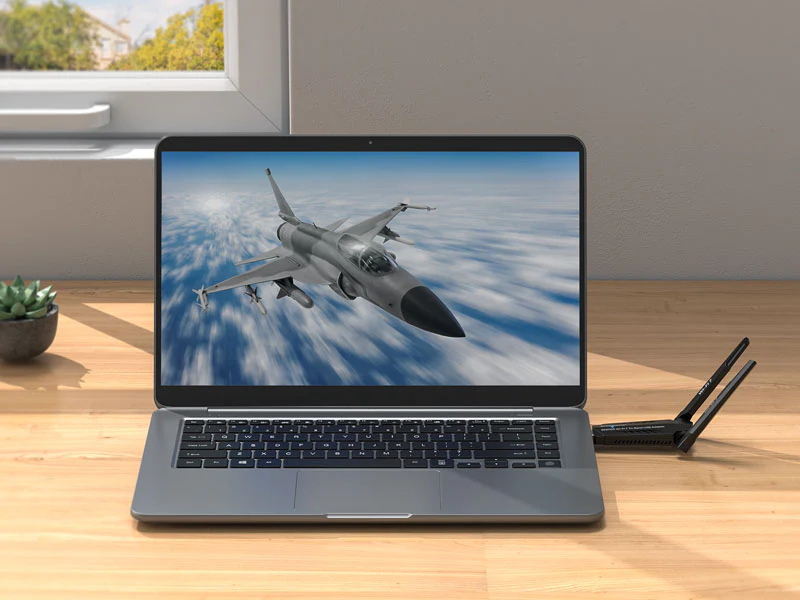
Choosing the right WiFi adapter for PC can make the difference between a stable, fast connection and constant buffering and dropped signals. This guide covers the types, standards, and factors that matter most, so you can pick the best WiFi adapter for PC based on your setup and needs.
What Is a WiFi Adapter for PC?
A WiFi adapter for PC is a hardware device that allows a desktop or laptop computer to connect to a wireless network. Desktop computers, in particular, often lack built-in wireless capability, which makes an external or internal WiFi adapter for PC necessary for wireless internet access. These adapters receive and transmit wireless signals, converting them into data your computer can use, similar to how a network cable functions but without a physical connection.
Types of WiFi Adapter for PC
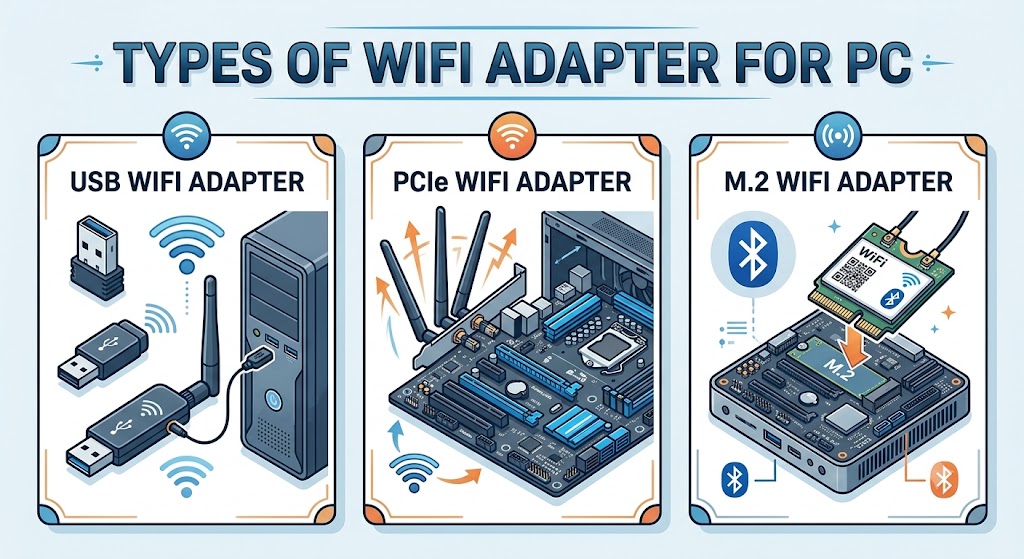
There are three primary categories of WiFi adapter for PC, each suited to different use cases, budgets, and technical comfort levels.
USB WiFi Adapter
A USB WiFi adapter for PC is the most common and beginner-friendly option. It plugs directly into a USB port and requires no internal installation. These adapters are typically compact, portable, and compatible with both desktops and laptops. USB WiFi adapters generally range from small “nano” designs to larger models with external antennas for improved range.
PCIe WiFi Adapter
A PCIe WiFi adapter for PC installs directly into a motherboard’s PCIe slot. This type of WiFi adapter for PC generally offers stronger signal reception and more stable performance compared to USB alternatives, largely because it draws power directly from the motherboard and often includes larger antennas. PCIe adapters are typically recommended for desktop users who prioritize speed and reliability over portability.
M.2 WiFi Adapter
An M.2 WiFi adapter for PC is a smaller form-factor card that connects to the M.2 slot on supported motherboards, commonly used in compact builds, mini-PCs, and some laptops. This type of WiFi adapter for PC is less common for casual buyers since it requires specific motherboard compatibility, but it offers a space-efficient solution for small-form-factor systems.
Key Factors to Consider When Choosing a WiFi Adapter for PC
Selecting the right WiFi adapter for PC depends on several technical and practical factors.
| Factor | Why It Matters |
|---|---|
| WiFi Standard | Determines maximum speed and network efficiency (e.g., WiFi 6, WiFi 6E, WiFi 7) |
| Frequency Bands | Dual-band or tri-band adapters reduce interference and improve speed |
| Interface Type | USB, PCIe, or M.2 affects installation method and performance |
| Antenna Design | External antennas generally improve range and signal stability |
| Operating System Compatibility | Driver support varies across Windows, macOS, and Linux |
| Security Protocol Support | WPA3 support offers stronger encryption than older WPA2 standards |
| Range Requirements | Larger homes or offices may need adapters with higher gain antennas |
A WiFi adapter for PC that checks most of these boxes will generally deliver a more consistent connection across different environments.
WiFi Standards Explained
Understanding wireless standards helps you choose a WiFi adapter for PC that matches your router and internet plan.
| Standard | Also Known As | Typical Max Speed | Best For |
|---|---|---|---|
| 802.11ac | WiFi 5 | Up to 1.3 Gbps | Basic browsing, streaming |
| 802.11ax (2.4/5GHz) | WiFi 6 | Up to 9.6 Gbps (shared) | Gaming, multiple connected devices |
| 802.11ax (6GHz) | WiFi 6E | Up to 9.6 Gbps (less congestion) | High-density environments |
| 802.11be | WiFi 7 | Up to 46 Gbps (theoretical) | Future-proofing, high-bandwidth tasks |
A WiFi 6 or WiFi 6E adapter is generally considered a practical middle ground for most users in 2026, offering a meaningful upgrade over older standards without the premium cost typically associated with WiFi 7 hardware.
Best WiFi Adapter for PC by Use Case
Rather than recommending specific models that change frequently, here is how to match a WiFi adapter for PC to common use cases:
| Use Case | Recommended Type | Key Feature to Prioritize |
|---|---|---|
| Everyday browsing and email | USB WiFi adapter (dual-band) | Plug-and-play simplicity |
| Gaming and low-latency needs | PCIe WiFi adapter (WiFi 6/6E) | Strong antenna, low latency |
| Streaming 4K/8K content | PCIe or high-gain USB adapter | High throughput, dual/tri-band |
| Small-form-factor PC builds | M.2 WiFi adapter | Motherboard compatibility |
| Frequent travel or multiple PCs | Compact USB WiFi adapter | Portability |
| Large homes or offices | PCIe adapter with external antennas | Extended range |
USB vs PCIe vs M.2: Which WiFi Adapter for PC Is Right for You
| Comparison Point | USB Adapter | PCIe Adapter | M.2 Adapter |
|---|---|---|---|
| Installation Difficulty | Very easy | Moderate (requires opening case) | Moderate to difficult |
| Portability | High | None | None |
| Typical Performance | Good | Generally better | Comparable to PCIe |
| Best For | Laptops, casual desktop use | Dedicated desktop setups | Compact builds |
| Cost Range | Generally lower | Moderate | Moderate |
How to Install a WiFi Adapter for PC (Step-by-Step)
Installing a WiFi adapter for PC varies slightly depending on the type selected.
For USB WiFi Adapters:
- Insert the adapter into an available USB port.
- Insert the manufacturer’s driver disc or download drivers from the official website.
- Follow on-screen installation prompts.
- Restart the PC if prompted.
- Connect to your wireless network through system settings.
For PCIe WiFi Adapters:
- Power off the PC and unplug it from the outlet.
- Open the case and locate an available PCIe slot.
- Insert the adapter card and secure it with the case screw.
- Attach the external antennas.
- Power on the PC and install the required drivers.
For M.2 WiFi Adapters:
- Power off and open the PC case.
- Locate the M.2 WiFi slot on the motherboard (check the manual for exact placement).
- Insert the card at an angle and secure it with the mounting screw.
- Connect antenna cables if applicable.
- Boot the PC and install drivers.
Troubleshooting Common WiFi Adapter for PC Issues
| Issue | Likely Cause | Suggested Fix |
|---|---|---|
| Adapter not detected | Outdated or missing drivers | Reinstall drivers from manufacturer site |
| Slow speeds | Wrong frequency band selected | Switch to 5GHz or 6GHz band |
| Frequent disconnects | Interference or outdated firmware | Update firmware, change router channel |
| Limited range | Adapter placement or weak antenna | Reposition PC or use adapter with external antenna |
| Driver conflicts | Multiple network adapters active | Disable unused network adapters in Device Manager |
WiFi Adapter for PC vs Built-In WiFi: Do You Need One?
Many modern laptops include built-in WiFi, but most desktop PCs do not, unless the motherboard specifically includes wireless capability. If your PC is experiencing slow performance because of unstable connectivity, upgrading to a WiFi adapter for PC with newer wireless standards like WiFi 6 can help improve connection reliability and reduce network-related slowdowns.
If your desktop lacks built-in WiFi, or if your current built-in adapter only supports older standards like WiFi 4 or WiFi 5, upgrading to a dedicated WiFi adapter for PC can generally improve speed, range, and connection stability. For laptop users, an external WiFi adapter for PC is typically only necessary if the built-in module has failed or does not support newer standards like WiFi 6E.
Security Considerations for Your WiFi Adapter for PC
This is an area often overlooked in buying guides. When selecting a WiFi adapter for PC, security protocol support matters as much as speed:
- WPA3 support: Newer adapters that support WPA3 encryption generally offer stronger protection against brute-force attacks compared to WPA2-only devices.
- Driver update frequency: Adapters from manufacturers who release regular driver and firmware updates tend to patch security vulnerabilities faster.
- MAC address randomization: Some newer WiFi adapters for PC support this feature, which can help reduce tracking across networks.
- Open-source driver availability: For Linux users, adapters with open-source or well-maintained community drivers generally receive security patches more reliably than proprietary-only alternatives.
Power Consumption and Antenna Design
Another factor rarely addressed in typical buying guides is how a WiFi adapter for PC affects system power draw and signal quality:
- USB adapters draw power directly from the USB port, which can matter for laptops running on battery, since higher-gain adapters may draw more power.
- Antenna count and placement: Adapters with 2 or more antennas generally support MIMO (Multiple Input, Multiple Output) technology, which can improve both speed and reliability by using multiple signal paths simultaneously.
- External vs internal antennas: External, adjustable antennas typically outperform fixed internal antennas in signal reception, particularly in homes with thicker walls or multiple floors.
Conclusion
Selecting the right WiFi adapter for PC comes down to matching the adapter type, WiFi standard, and antenna configuration to your specific setup and usage needs. USB WiFi adapters offer convenience and portability, PCIe adapters generally provide stronger performance for dedicated desktop setups, and M.2 adapters suit compact builds. Regardless of which WiFi adapter for PC you choose, prioritizing WiFi 6 or WiFi 6E support, WPA3 security, and adequate antenna design will generally result in a more reliable and future-ready wireless connection.
Frequently Asked Questions
Does a WiFi adapter for PC reduce internet speed compared to a wired connection?
In most cases, wired Ethernet connections offer more consistent speeds than wireless ones, since wireless signals can be affected by interference, distance, and physical obstructions. However, a high-quality WiFi adapter for PC using WiFi 6 or WiFi 6E can come close to wired speeds under optimal conditions.
Can I use two WiFi adapters on the same PC at once?
Technically yes, though it’s not common practice. Running two adapters simultaneously can occasionally cause IP conflicts or driver issues unless configured carefully through network settings, so most users stick to a single active adapter at a time.
Do WiFi adapters work with both Windows and macOS?
Compatibility varies by manufacturer. Many WiFi adapters are designed primarily for Windows, with driver support for macOS or Linux being less consistent. Checking the product specifications for OS compatibility before purchasing is recommended.
Is a higher antenna count always better for a WiFi adapter for PC?
Not necessarily. While more antennas can improve MIMO performance and signal reliability, the actual benefit depends on router compatibility and the WiFi standard being used. A dual-antenna WiFi 6 adapter can outperform a quad-antenna older-standard adapter in real-world use.
How often should WiFi adapter drivers be updated?
There’s no fixed schedule, but checking for driver updates every few months, or immediately after experiencing connectivity issues, is generally a good practice to maintain performance and security.
Can a WiFi adapter for PC support a mesh network system?
Yes, most modern WiFi adapters can connect to mesh network systems the same way they connect to a standard router, provided the adapter supports the same frequency bands and security protocols as the mesh network.