
Managing multiple Apple subscriptions and storage plans for an entire household can be both complicated and costly. iCloud Family Sharing is Apple’s built-in solution that lets up to six people share a single iCloud+subscription, eligible app purchases, and a range of Apple services, all while keeping each person’s personal data completely private.
Whether you are setting this up for the first time or troubleshooting an existing group, this guide covers everything you need to know: what iCloud Family Sharing includes, how storage works, how to set it up on iPhone, iPad, and Mac, and the features available to child accounts.
What Is iCloud Family Sharing?
iCloud Family Sharing is a feature built into Apple devices
that allows a group of up to six people to share a single iCloud+ subscription,
app and media purchases, and various Apple services without sharing an Apple
Account. Each member signs in with their own account, so personal files,
photos, messages, and settings remain separate.
One adult in the household acts as the Family Organizer.
This person sets up the group, manages subscriptions and child accounts, and
typically owns the payment method on file. Other adults can be invited as
regular members, and children under 13 can have accounts created and managed
for them.
|
Key Points
|
What Does iCloud Family Sharing Include?
iCloud Family Sharing covers several categories of content and
services. Here is a breakdown of what is typically available:
|
Feature |
What It |
|
iCloud+ Storage |
Shared storage pool (50 GB |
|
Purchase Sharing |
Eligible apps, music, |
|
Apple Subscriptions |
Apple Music, TV+, Arcade, |
|
iCloud Private Relay |
Premium privacy feature |
|
Hide My Email |
Create random email aliases |
|
HomeKit Secure Video |
Encrypted security camera |
|
Location Sharing |
Opt-in location sharing |
|
Shared Photo Library |
A separate iCloud photo |
|
Family Calendar |
A shared calendar visible |
|
Ask to Buy |
Children must get approval |
|
Screen Time |
Parents can set limits and |
|
Apple Cash Family |
Send allowances and manage |
Note: Not all features are available in every country or region. HomeKit Secure Video requires a supported camera and a home hub device such as HomePod, Apple TV, or an iPad configured as a home hub.
iCloud Family Sharing Storage Plans and Pricing
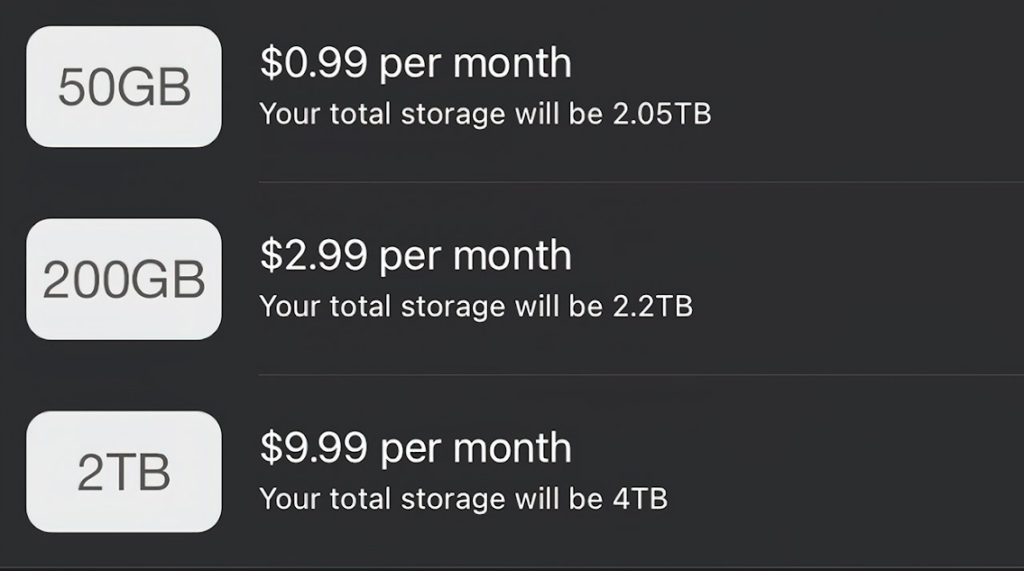
All members of a Family Sharing group draw from a single
shared iCloud storage pool. The organizer (or any member who subscribes to
iCloud+) can share that pool with the group. Everyone’s files and photos remain
private only the capacity is shared.
|
Storage |
Price/Month |
Family |
Best For |
|
50 GB |
$0.99 |
Up to 6 members |
Light users; minimal backup |
|
200 GB |
$2.99 |
Up to 6 members |
Small to medium families; |
|
2 TB |
$9.99 |
Up to 6 members |
Larger families or heavy |
|
6 TB |
$29.99 |
Up to 6 members |
Power users with extensive |
|
12 TB |
$59.99 |
Up to 6 members |
Maximum capacity; |
* Pricing may vary by country and region. Plans are billed monthly. Upgrades apply immediately; downgrades take effect at the next billing cycle.
|
Storage Notes
|
How to Set Up iCloud Family Sharing (Step-by-Step)
Setting up Family Sharing requires one adult to act as the
Family Organizer. The process varies slightly by device.
On iPhone or iPad
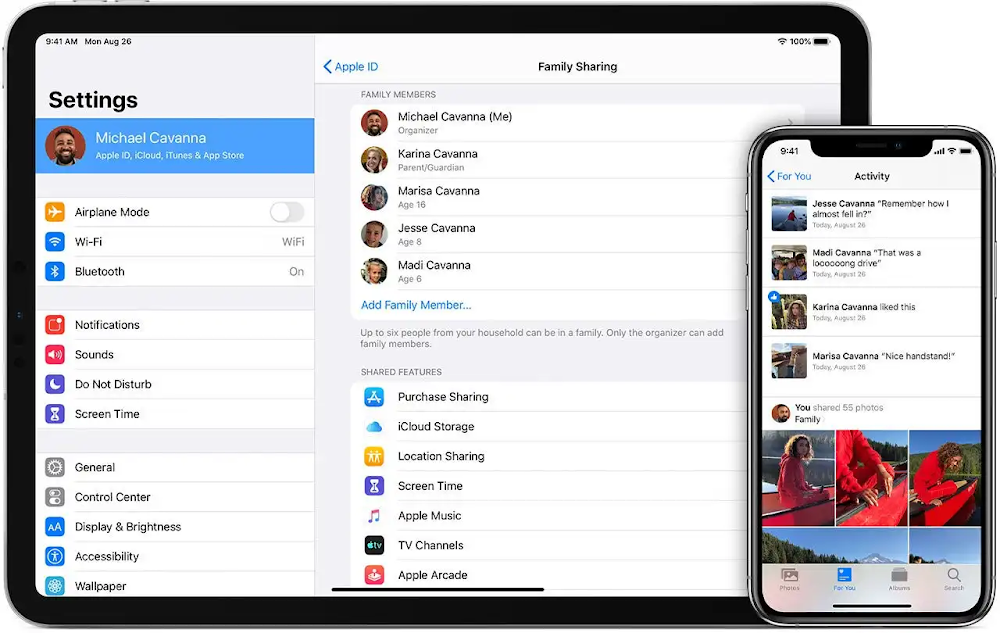
- Open the Settings app and tap your name at the top.
- Tap Family (or Family Sharing on older iOS versions).
- Tap Continue, then follow the on-screen instructions.
- Choose Set Up Your Family and add members by sending an invitation via iMessage or entering an Apple Account email directly.
- Family members receive an invitation and must accept it to join the group.
On Mac
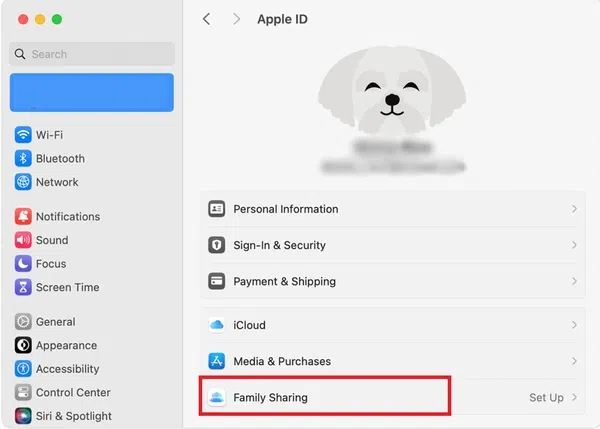
- Click the Apple menu and go to System Settings.
- Click your name, then select Family.
- Click Set Up, then follow the on-screen prompts.
- Invite family members via iMessage or their Apple Account email.
|
Before You Begin
|
How to Share iCloud+ With Your Family?
Once Family Sharing is active, sharing your iCloud+
subscription is a separate step. Family members on the free 5 GB plan are
typically added to the shared pool automatically once the steps below are
completed.
On iPhone or iPad
- Open Settings and tap Family.
- Tap Subscriptions, then tap iCloud+.
- Tap Share with Family and follow the on-screen steps.
On Mac
- Click the Apple menu and go to System Settings, then click Family.
- Click Subscriptions, then choose iCloud+.
- Click Share with Family and follow the on-screen instructions.
For family members who want to join a shared iCloud+ plan: Go to Settings > Family > Subscriptions > iCloud+ and tap Use Family Storage. On Mac, go to System Settings > Family > Subscriptions > iCloud+ and click Use Shared Plan.
Setting Up Child Accounts and Parental Controls
Children under 13 generally need a parent or guardian to
create an Apple Account for them and add it to the Family Sharing group.
Depending on the child’s age and region, the account may be required to remain
connected to a Family Sharing group until they turn 18.
Creating a Child Account
- Open Settings and tap Family, or go to System Settings > Family on Mac.
- Tap Add Member > Create Child Account.
- Follow the on-screen prompts to enter the child’s birthdate and create their Apple Account.
- A parent or guardian must verify parental consent during this process.
Key Parental Control Features
- Ask to Buy: Enabled by default for child accounts. Every app, game, book, or media purchase requires explicit approval from a parent or guardian before it is processed.
- Screen Time: Parents can review daily and weekly usage reports, set app time limits, schedule downtime, and restrict content by rating, all from their own device.
- Content Restrictions: Limit the types of content that appear on a child’s device, including apps, websites, movies, music, and TV shows.
- Apple Cash Family: Parents can set spending controls, limit who a child can send money to, and review transaction history within the Wallet app.
- Location Sharing: When a child is part of Family Sharing, their device location is visible in the Find My app.
Location Sharing and Find My
Family Sharing integrates with the Find My app to let members
share their location with each other. Location sharing is opt-in for adults,
and each member can turn it off at any time.
- To enable location sharing: Go to Settings > Family > select a family member > toggle on Location Sharing.
- Open the Find My app and tap People to view shared locations on a map.
- Tap Devices to see all family members’ Apple devices, making it straightforward to locate a lost device.
- Notification alerts can be set to trigger when a family member arrives at or departs from a specific location, such as school or work.
Purchase Sharing: Apps, Music, Movies, and Books
When Purchase Sharing is turned on, apps, music, movies, TV
shows, and books bought by any family member become available to all other
members. This can reduce duplicate spending on apps or media used by multiple
people in the household.
To enable or manage Purchase Sharing: Go to Settings
> Family (or System Settings > Family on Mac) and toggle on Purchase
Sharing. Each member can also hide individual purchases they want to keep
private. Hidden items remain linked to their Apple Account but do not appear in
shared lists.
|
What Cannot Be Shared
|
Privacy in iCloud Family Sharing
A common concern with family plans is privacy. iCloud Family
Sharing is designed so that shared storage does not mean shared access to
personal content.
|
What IS Shared |
What Is NEVER Shared |
|
Storage capacity (the |
Personal photos and videos |
|
Eligible app and media |
iCloud Drive files and |
|
Apple service subscriptions |
Messages and iMessage |
|
Location (opt-in adults |
Passwords and Keychain data |
|
Family calendar and |
Health and Fitness data |
|
Shared Photo Library |
Apple Account credentials |
Apple Music, Apple TV+, Apple Fitness+, and Apple News+ each
maintain individual preferences, listening or viewing history, and
recommendations, even when the subscription itself is shared.
Managing Family Members
The Family Organizer can add or remove members at any time.
Below are the most common management actions:
Adding a Member
- Go to Settings > Family > Add Member (iPhone/iPad) or System Settings > Family > Add Member (Mac).
- Enter the person’s Apple Account email or send an invitation via iMessage.
- The invitee receives the invitation and must accept to join the group.
Removing a Member
- Go to Settings > Family, select the member’s name, and tap Remove.
- Removed members lose access to shared subscriptions and family purchases, but keep any items already downloaded.
- Child accounts require a parent or guardian to manage removal.
Leaving a Family Sharing group: If a member leaves and
was using more than 5 GB of iCloud storage under the shared plan, they will
need to purchase their own iCloud+ plan to continue syncing and backing up
their device.
Common Issues and How to Resolve Them
Managing Apple Family Sharing is usually straightforward, but occasional issues can arise when setting up or using shared features. Below are some of the most common problems users face, along with practical steps to resolve them quickly.
Family Member Cannot See Shared Purchases
- Confirm that Purchase Sharing is turned on under Settings > Family.
- Ask the member to sign out of the App Store and sign back in.
- Some apps are excluded from family sharing by the developer; check the app’s listing for eligibility.
iCloud Storage Still Shows Full After Joining Shared Plan
- The member may need to confirm they have switched to the shared plan: Settings > Family > Subscriptions > iCloud+ > Use Family Storage.
- If you’re experiencing delays or iCloud Not Syncing on Mac, allow a few minutes for the plan change to take effect, then refresh the storage view
Cannot Add a Family Member
- A person can only belong to one Family Sharing group at a time. They must leave their current group before joining yours.
- Ensure the invitee has a valid Apple Account and is signed in on their device.
Ask to Buy Requests Are Not Appearing
- Confirm that Ask to Buy is enabled: Settings > Family > select the child’s name > Ask to Buy.
- The parent or guardian must be reachable via iMessage to receive the approval notification.
Frequently Asked Questions
How many people can be in an iCloud Family Sharing group?
Ans. Up to six people in total: the Family Organizer plus up to
five additional members.
Does iCloud Family Sharing work on Android?
Ans. No. Family Sharing is an Apple ecosystem feature and requires
Apple devices running iOS, iPadOS, or macOS. Android users cannot join a Family
Sharing group.
Can I be in more than one Family Sharing group?
Ans. No. Each Apple Account can belong to only one Family Sharing group
at a time. You would need to leave your current group before joining another.
Will my family be able to see my personal photos or files?
Ans. No. Personal photos, documents, messages, and files stored in
iCloud remain private to each account holder. Only content you explicitly add
to a shared album or folder is visible to others.
What happens if I leave the Family Sharing group?
Ans. You lose access to shared subscriptions and family purchases
(though you keep items already downloaded). If your iCloud storage usage
exceeds 5 GB, you will need your own iCloud+ plan to continue syncing and
backing up.
Is there a family plan included with Apple One?
Ans. Yes. Apple One Family ($22.95/month in the US) bundles Apple
Music, Apple TV+, Apple Arcade, and 200 GB of iCloud+ storage for up to six
members. Apple One Premier ($32.95/month) adds Apple News+ and Apple Fitness+
with 2 TB of iCloud+ storage.
Key Takeaways
|
Summary
|
Conclusion
iCloud Family Sharing is one of the more practical tools Apple
offers for households that rely on Apple devices. By consolidating
subscriptions and purchases under a single plan, it can simplify account
management and reduce costs while keeping individual data genuinely private.
The setup process is generally straightforward once each
member has their own Apple Account. Parental controls, purchase approvals, and
location features give families meaningful options for staying organized and
connected without compromising individual privacy.
If you are considering which storage plan to choose, the 200
GB tier at $2.99/month is generally the most practical starting point for small
to medium families. Larger households or heavy media users may find the 2 TB
plan more appropriate. All plans can be upgraded at any time with no long-term
commitment.