
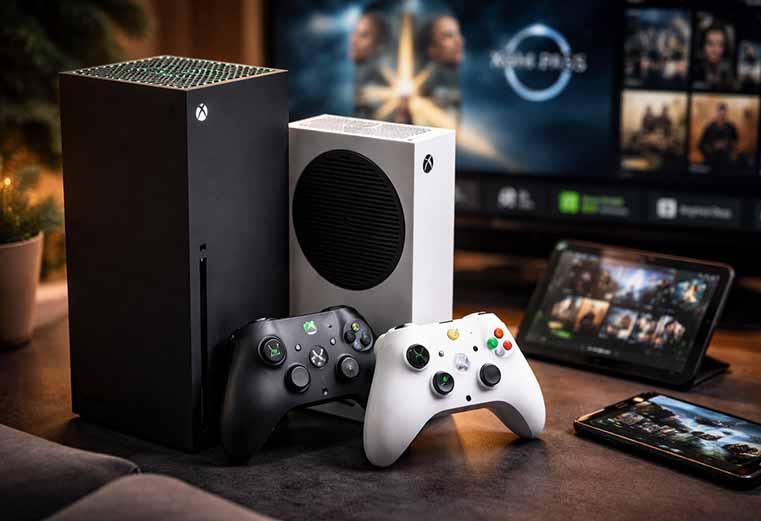
Want to play the latest Xbox co-op game with a friend without buying it yourself? Game sharing makes that possible. It’s a simple way to multiply your gaming fun without multiplying the cost. Learning how to game share Xbox takes about five minutes, no special equipment, and no software. You just need two Microsoft accounts and a bit of trust. In this 2026 guide, you’ll learn exactly what you can share, the requirements, the step-by-step setup, and how to fix the most common issues fast.
What Game Sharing on Xbox Is and How It Works
Game sharing on Xbox lets you share your full digital game library with one trusted friend or family member. It works through a setting called “My home Xbox.”
Here’s the core idea. Every Xbox account can mark one console as its home Xbox. Any profile signed in on that console can play that account’s digital games and use its subscriptions, even when the owner isn’t signed in. So when you learn how to game share Xbox, you’re really learning how to swap home consoles.
Two people typically trade. You set your friend’s console as your home Xbox, and they set your console as theirs. Now you both reach two libraries instead of one. This is why game sharing on Xbox feels like doubling your collection for free.
What You Can and Can’t Share (Games, Game Pass, and DLC)
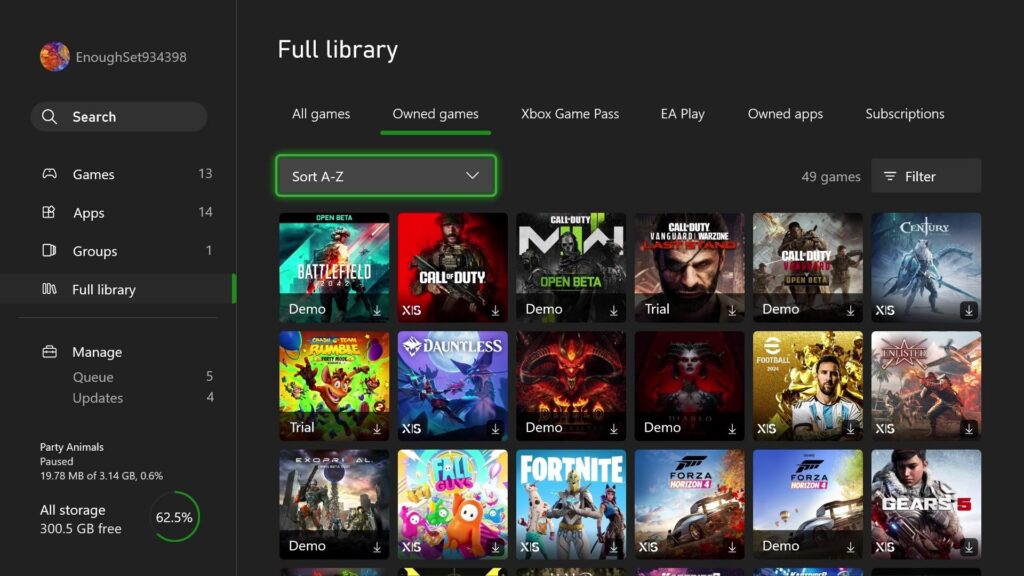
Not everything travels between consoles. Before you set up how to game share Xbox, know the boundaries.
| Shareable | Not Shareable |
|---|---|
| Digital games bought from the Microsoft Store | Physical disc games (disc must stay in the console) |
| Game Pass and Game Pass Ultimate | Some account-locked DLC or in-game items |
| Xbox Live Gold / Game Pass Core | Cloud saves (these stay per account) |
| EA Play | Progress tied to a personal profile |
If the primary account has an active Game Pass Ultimate subscription, the second account on the shared console taps into that Game Pass library too, exactly like purchased digital games. That’s a big deal. Splitting one Game Pass Ultimate membership between two people is a genuine money-saver, often cutting the cost per person roughly in half.
Requirements Before You Start
You don’t need anything fancy. Here’s the short checklist before you game share on Xbox:
- Two Xbox accounts, one for you, one for your friend, each with its own email and password.
- At least one console each, Xbox One, Xbox Series S, or Series X all work.
- An internet connection, you need it to sign in and download games. Once downloaded, games play offline.
- A fully updated console, update before you begin so the menus match this guide.
- Trust, this is the big one. You’ll put your account on their console, which means they could still reach your library even after you sign back in on your own Xbox.
One more limit: you can only have one home Xbox at a time, and you can change it up to five times per year. Choose carefully.
How to Set Up Game Sharing on Xbox Step by Step
Setting up how to game share Xbox means making a friend’s console your home Xbox, and vice versa. You’ll repeat the process twice so sharing works both ways.
On your friend’s console (using your account):
- Turn on the console and press the Xbox button on your controller to open the guide.
- Select the account icon on the left, then choose Add or switch → Add new.
- Sign in with your Xbox network username and password.
- Go to Settings → General → Personalization → My home Xbox.
- Read the on-screen note carefully, then select “Make this my home Xbox.” Enter your password if prompted.
That’s it, your friend’s console is now your home Xbox, and your digital library is available there.
On your console (using their account):
Have your friend repeat the exact same steps with their account on your Xbox. Add their account, open My home Xbox, and set your console as their home Xbox. Now both libraries flow both directions.
When you’re done, sign out of the other person’s account to keep your dashboard clean. Press the Xbox button, go to the leftmost panel in the guide, and select Sign out.
How to Access and Play Your Shared Games
Once both consoles are set, playing shared games is easy. You access them the same way you access your own.
- Sign in to your Xbox account on your own console.
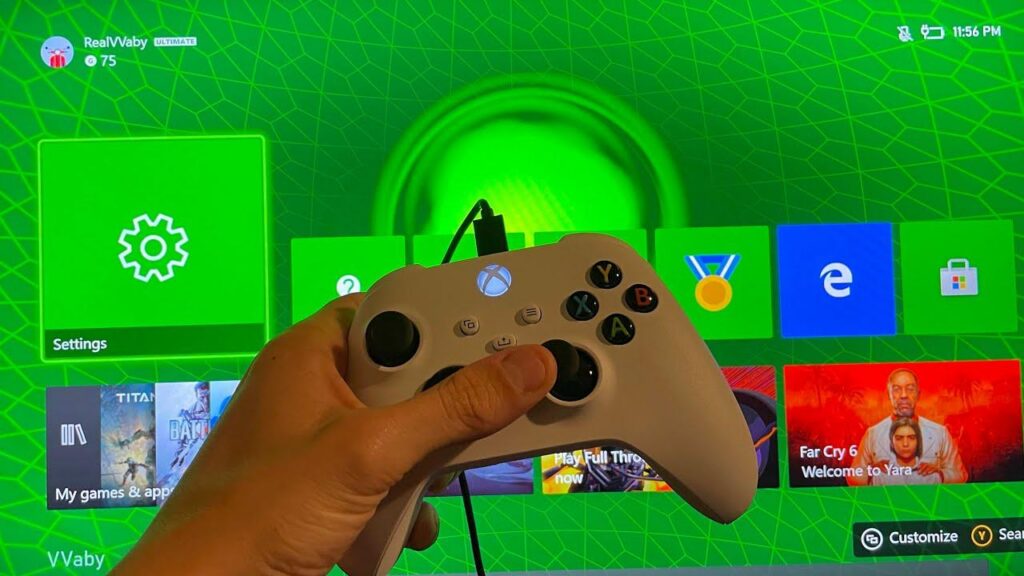
- From the Home screen, open My games & apps.
- Scroll to Full library → All owned games.
There you’ll see every game available to you, including the ones shared by your partner. Select a title and download it. If a game doesn’t show up, search for it in the store, if the button says Install instead of a price, you’re good to play.
One handy bonus: both users can play the same game at the same time. One person plays on the home Xbox, and the other signs into the owning account on a different console. No conflict, no lockout.
Common Questions, Limits, and Troubleshooting
Even a quick setup hits snags. Here are the fixes and facts you’ll want when you game share on Xbox.
How many people can share? Game sharing only works between two accounts at a time. You can switch who you share with, but each switch uses one of your five yearly home Xbox changes, so adding a third or fourth person burns through that limit fast.
A shared game won’t load? Run this quick check:
- Confirm the game is digital, not a disc title.
- Make sure the other account still owns the license or has an active Game Pass subscription.
- Verify their console is still set as your home Xbox and vice versa.
What if someone removes you? If a person removes your console as their home Xbox, you instantly lose access to their digital games and subscriptions. To restore it, they’ll need to reassign your console as home, which costs another yearly change.
Is it allowed? Yes. Microsoft supports game sharing, but it’s meant for people you trust, like close friends and family. Sharing with strangers or selling access can get your account suspended or banned. Keep it in your circle.
Conclusion
Now you know how to game share Xbox from start to finish. Set each other’s consoles as your home Xbox, then download from the shared library, that’s the whole trick. It’s a smart way to save money, split a Game Pass membership, and play more games with the people you trust. Just mind the five-changes-a-year limit and share only with someone you’d hand your password to. It’s a smart way to save money, split a Game Pass membership, and play more games with the people you trust. If you’re upgrading your gaming setup, choosing the best monitor for Xbox Series X can help you get the most out of every shared title.