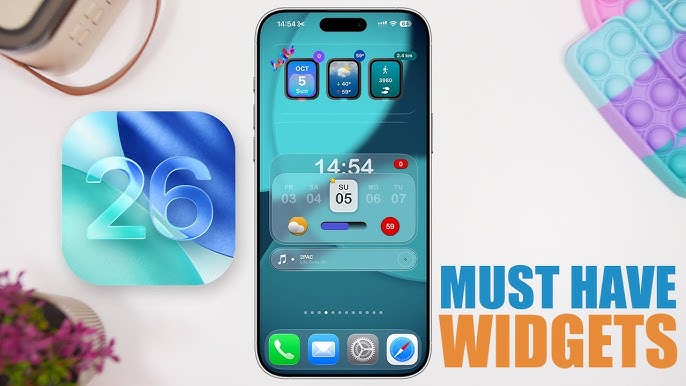
The best widgets for iPhone do more than fill empty space. They put useful information, fast actions, and personal style right on your Home Screen or Lock Screen. If you want the best widgets for iPhone in 2026, focus on three things: usefulness, speed, and visual fit.
This list ranks nine standout picks for customization, calendar control, weather, tasks, habits, navigation, music, and shortcuts. You’ll see what each widget does best, who should use it, and where it falls short. That makes it easier to build a setup that looks clean and saves you taps every day.
Before the list, here’s a quick comparison table for the best widgets for iPhone in this guide.
| Widget | Best For | Built-In or Third-Party | Best Placement |
|---|---|---|---|
| Widgetsmith | Custom design | Third-party | Home Screen + Lock Screen |
| Smart Stack | Daily convenience | Built-in | Home Screen |
| Fantastical | Calendar planning | Third-party | Home Screen |
| CARROT Weather | Forecasts | Third-party | Home Screen + Lock Screen |
| Todoist | Task management | Third-party | Home Screen |
| Streaks | Habit tracking | Third-party | Home Screen |
| Google Maps | Commutes | Third-party | Home Screen |
| Spotify | Music control | Third-party | Lock Screen + Home Screen |
| Lock Launcher | Shortcuts | Third-party | Lock Screen |
A useful rule: the best widgets for iPhone should reduce friction. If a widget looks nice but saves you zero time, it probably doesn’t deserve a permanent spot.
1. Widgetsmith: Best Overall for Custom Home Screen Design
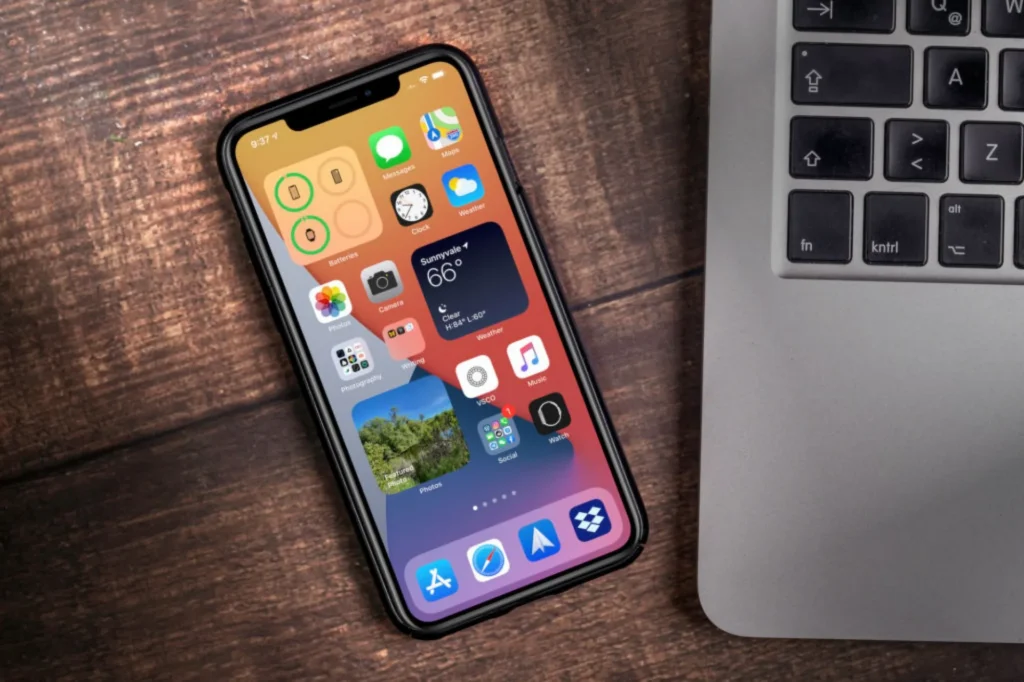
Widgetsmith earns the top spot because it gives you the most control over how your iPhone looks. If you search for the best widgets for iPhone for aesthetics, this app usually leads the conversation, and for good reason.
It lets you build widgets with custom fonts, colors, themes, photos, calendars, battery displays, step counts, and more. You can also schedule widgets to change by time of day, which is still one of its smartest features.
Why it stands out
- Strong visual customization
- Supports Home Screen and Lock Screen layouts
- Works well with themed icon packs and Focus modes
- Supports interactive features on newer iOS versions
Best for
- Gen Z customization fans
- Users who want a cohesive aesthetic
- Anyone building themed Home Screen pages
Pros and cons
| Pros | Cons |
|---|---|
| Excellent design freedom | Some advanced options need setup time |
| Great for photos, calendars, and battery widgets | Premium features may require a subscription |
| Fits many aesthetic styles | Can become style-first, utility-second |
Think of Widgetsmith like arranging furniture in a studio apartment. Every inch matters, and the goal is both style and function. If you want one app that captures the spirit of the best widgets for iPhone, this is the safest pick.
2. Smart Stack: Best Built-In Widget for Everyday Convenience
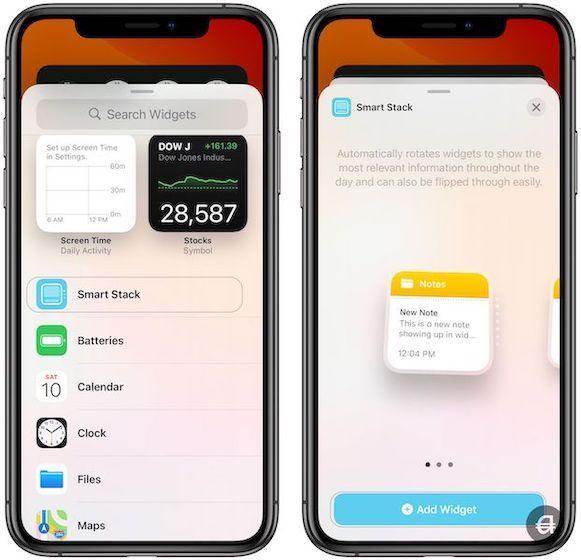
Smart Stack is Apple’s strongest built-in answer to the best widgets for iPhone. It stacks multiple widgets in one space and rotates them based on time, location, and usage patterns.
That means you might see Weather in the morning, Calendar before a meeting, and Reminders later in the day, without manual switching. Many users also combine Smart Stack with expense tracker apps to quickly monitor spending patterns alongside daily schedules. On iOS 18 and later, Smart Stack feels more relevant and less random than earlier versions.
Why it stands out
- Comes with iOS, so no extra download is needed
- Saves screen space
- Uses on-device context to surface useful widgets
- Usually lighter on battery than third-party widget setups
Best for
- People who want a low-maintenance setup
- Students and professionals with changing daily needs
- Users who prefer native Apple apps
Pros and cons
| Pros | Cons |
|---|---|
| Free and built in | Less visual customization |
| Easy to set up | Depends on Apple app ecosystem |
| Smart rotation reduces clutter | May not always predict your needs perfectly |
A lot of articles underrate native options, but Smart Stack deserves its place among the best widgets for iPhone because it solves a real problem: too many widgets, not enough space.
A practical setup tip
Place Smart Stack on your first Home Screen page. Then keep specialty widgets, like music or habits, on page two. That gives you speed without crowding your main view.
3. Fantastical: Best Calendar Widget for Busy Schedules
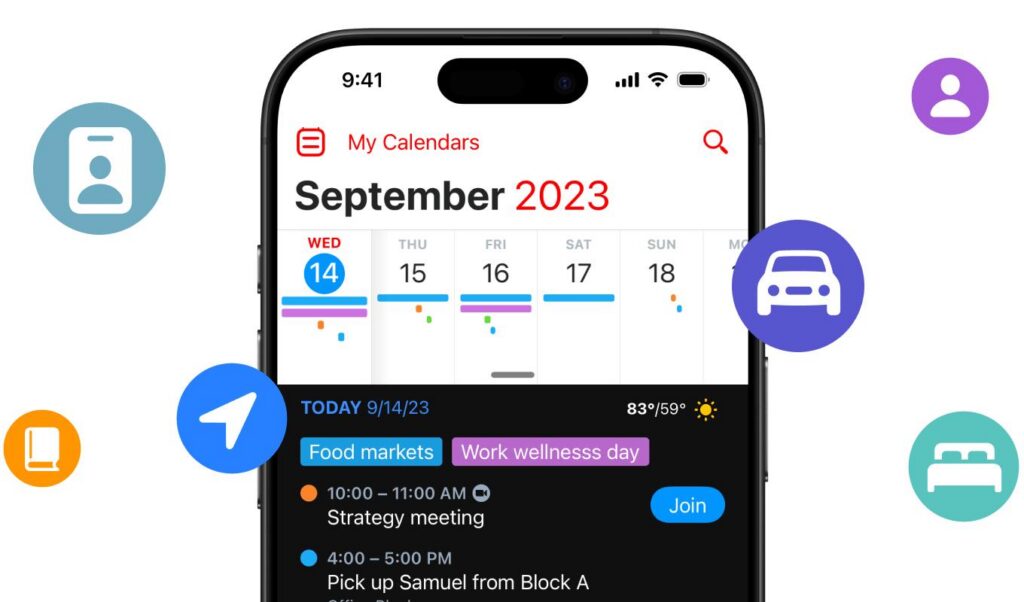
If your day runs on meetings, classes, deadlines, and reminders, Fantastical is one of the best widgets for iPhone you can install. Its widget design is clean, dense with useful information, and easy to scan.
Fantastical is known for natural language input, so you can type something like “Lunch with Sam Thursday at 1 PM” and it creates the event correctly. Its widgets extend that strength by showing your agenda, upcoming tasks, and even weather overlays.
Why it stands out
- Clear agenda views
- Fast calendar scanning
- Strong support for tasks and events in one place
- Great for users with packed schedules
Best for
- Professionals with calendar-heavy days
- College students managing classes and deadlines
- Families coordinating shared schedules
Pros and cons
| Pros | Cons |
|---|---|
| Beautiful agenda widget layouts | Best features often sit behind premium plans |
| Natural language event creation | More useful if you already live in your calendar |
| Combines events, tasks, and weather | Less helpful for casual users |
What makes it different
Many calendar widgets show date boxes. Fantastical shows context. That matters when you’re checking your phone between class, on a train, or before a Zoom call. Among the best widgets for iPhone, it is one of the strongest examples of information density done right.
4. CARROT Weather: Best Weather Widget for Glanceable Forecasts
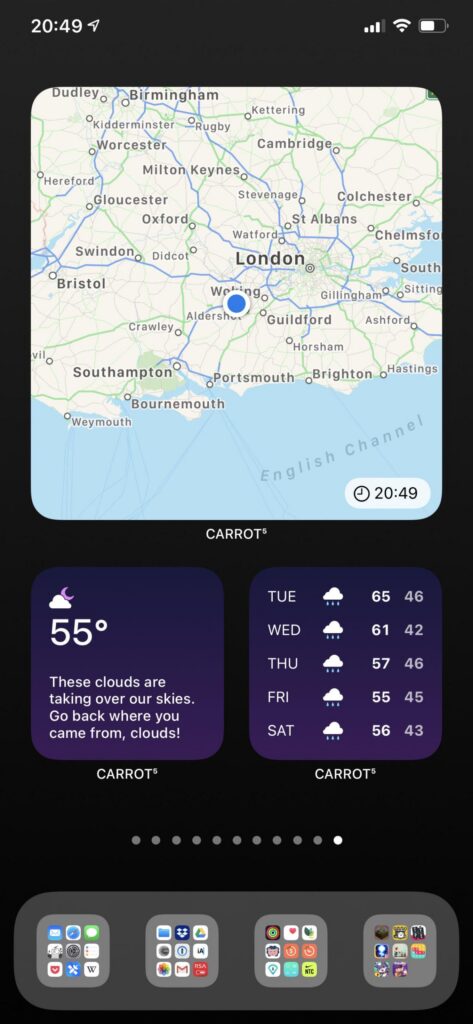
CARROT Weather is one of the best widgets for iPhone if you want weather data that is fast, detailed, and actually pleasant to check. Its personality gets attention, but its forecast quality is the real reason it ranks here.
Depending on widget size, you can view hourly forecasts, daily highs and lows, precipitation, radar access, and severe weather signals. That range makes it useful for commuters, runners, parents, and travelers.
Why it stands out
- Highly readable forecast widgets
- Multiple data views in different sizes
- Strong radar and rain detail
- Distinctive humor, if you want it
Best for
- Users who check weather several times a day
- Outdoor exercisers
- People in areas with fast-changing weather
Pros and cons
| Pros | Cons |
|---|---|
| Rich weather data | Full feature set can cost extra |
| Attractive widget designs | Humor style may not appeal to everyone |
| Useful at a glance | Can feel advanced for basic users |
The underrated reason it works
Weather widgets fail when they hide useful detail behind tiny text. CARROT Weather usually avoids that. It surfaces the next decision you need to make: jacket, umbrella, or no problem. That’s why it belongs with the best widgets for iPhone in 2026.
5. Todoist: Best Task Widget for Productivity and Focus
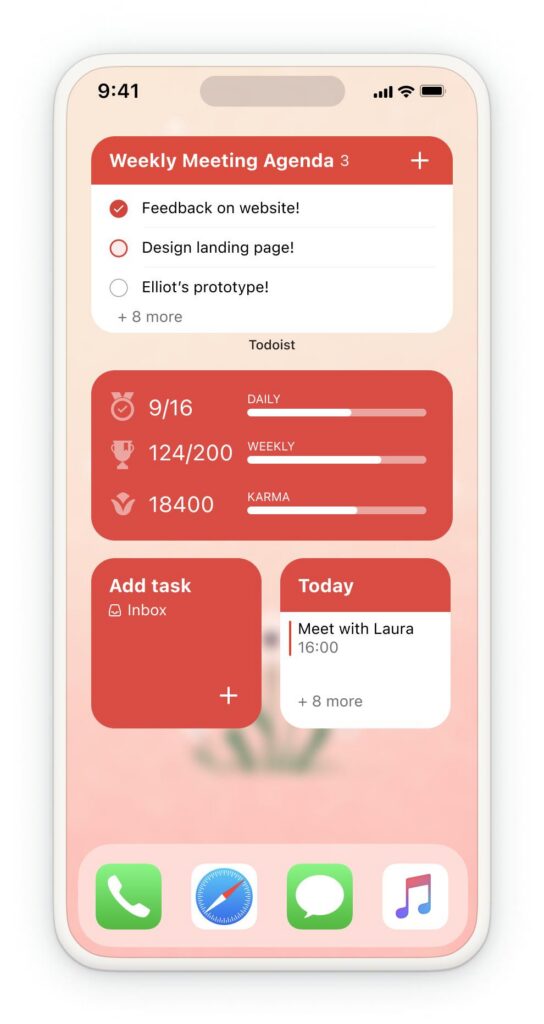
Todoist remains one of the best widgets for iPhone for people who want clear task visibility without opening an app every hour. Its widgets show today’s tasks, priority items, project lists, or filtered views.
That simple visibility changes behavior. When your top three tasks sit on the Home Screen, procrastination gets harder. You see the work. You do the work.
Why it stands out
- Clean task lists
- Cross-device sync with iPhone, iPad, Mac, and web
- Quick-add workflow
- Strong support for labels, priorities, and projects
Best for
- Students juggling assignments
- Professionals with multiple projects
- Anyone using GTD-style task management
- Pros and cons
| Pros | Cons |
|---|---|
| Excellent visibility for daily tasks | Power features may take time to learn |
| Reliable sync across devices | Some advanced filters require paid plans |
| Good balance of simplicity and depth | Not ideal if you dislike structured task systems |
A placement idea that works
Put Todoist near the top of your first Home Screen page. Pair it with Calendar or Smart Stack. That creates a strong command center. If your goal is function over decoration, Todoist is easily among the best widgets for iPhone.
6. Streaks: Best Habit-Tracking Widget for Daily Accountability
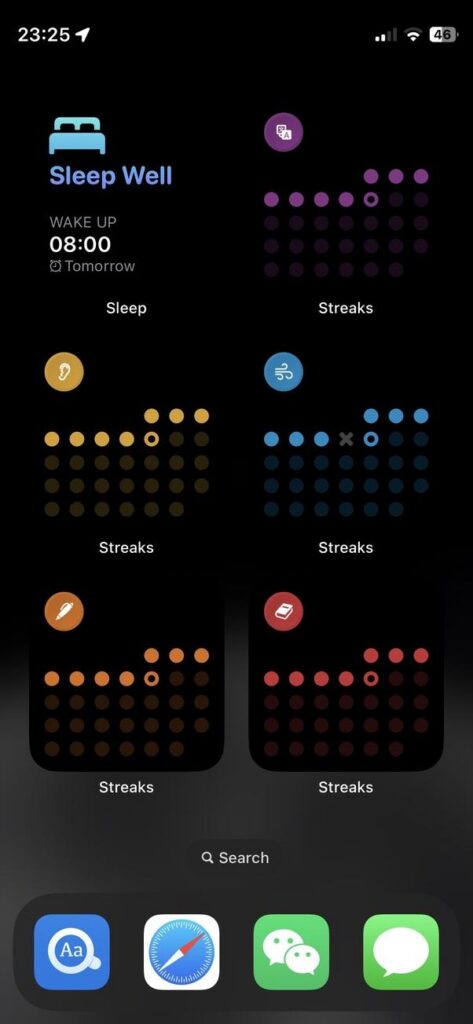
Streaks is one of the best widgets for iPhone if your focus is consistency. It tracks repeat actions like drinking water, reading, stretching, walking, or taking medication. The widget turns those habits into visible progress markers.
That matters because habits usually fail from invisibility, not difficulty. If your habit tracker lives inside a folder, you’ll forget it. If it sits on your Home Screen, it nudges you all day.
Why it stands out
- Strong visual progress cues
- Designed around repetition and streak counts
- Easy check-off flow
- Helpful statistics over time
Best for
- Fitness beginners
- Students building routines
- Anyone trying to reduce decision fatigue
Pros and cons
| Pros | Cons |
|---|---|
| Keeps habits visible | Less useful for complex project planning |
| Motivating streak system | Can feel repetitive if you track too many habits |
| Simple and focused interface | Best results require honest daily use |
A smart way to use it
Keep only three to five habits in the widget. More than that creates wallpaper, not accountability. Among the best widgets for iPhone, Streaks stands out because it changes behavior with one small visual cue.
7. Google Maps: Best Navigation Widget for Commuters and Students
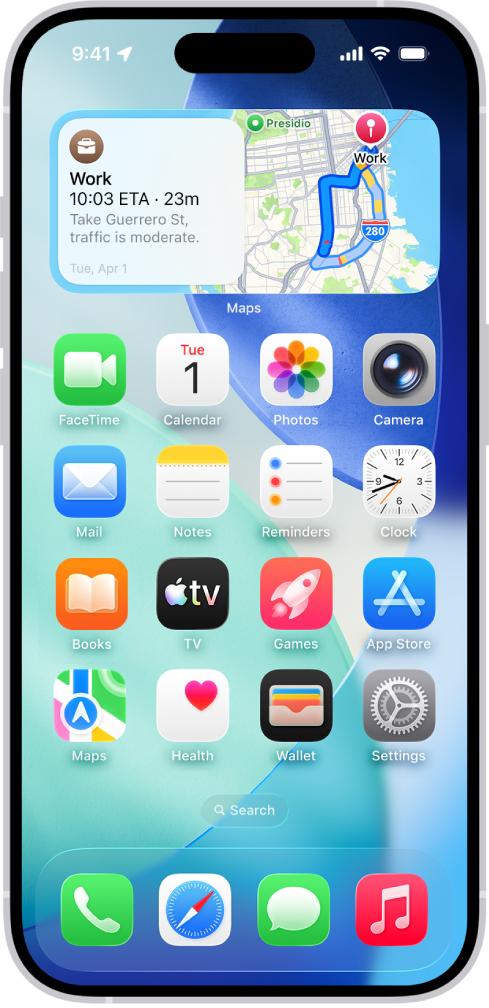
Google Maps earns its place among the best widgets for iPhone because it reduces the number of taps between “I need to leave” and “I’m on my way.” That sounds small. In real life, it saves time every day.
Its widgets can show commute estimates, traffic conditions, saved places, and one-tap directions. If you travel to school, work, the gym, or a partner’s house on repeat, this is a strong utility pick.
Why it stands out
- Fast access to navigation
- Reliable live traffic and ETA data
- Useful for recurring commutes
- Strong place search and saved destination support
Best for
- Daily commuters
- College students on unfamiliar campuses
- Users who drive, bike, or use transit often
Pros and cons
| Pros | Cons |
|---|---|
| Quick route access | Best value depends on your travel habits |
| Trusted traffic data | Home Screen design is more functional than stylish |
| Great for saved destinations | Less relevant if you rarely travel |
A standout use case
If you leave home at roughly the same time each day, a Google Maps widget acts like a traffic heads-up display. It answers one question fast: should you leave now? That makes it one of the best widgets for iPhone for practical daily use.
8. Spotify: Best Music Widget for Quick Playback Control
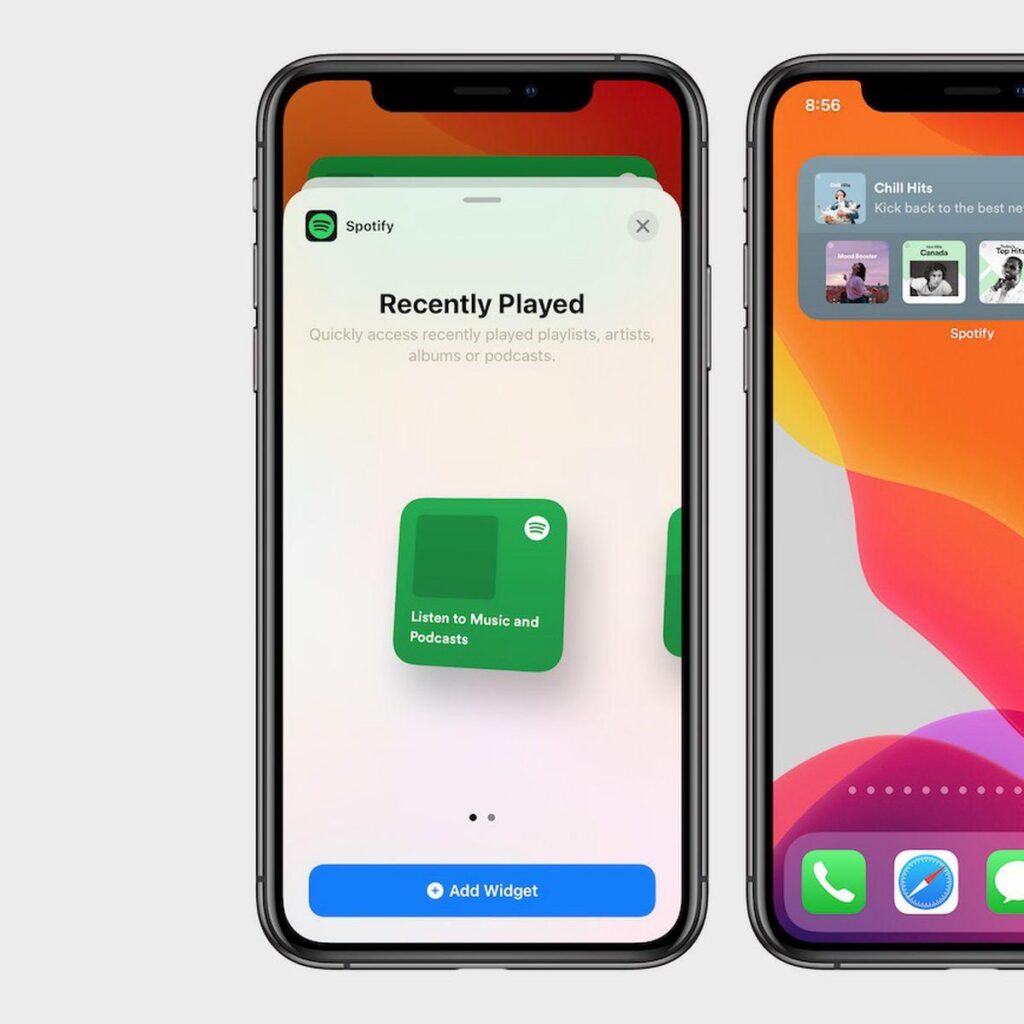
Spotify is one of the best widgets for iPhone for quick audio access. It works especially well if music, podcasts, or study playlists are part of your daily routine.
The widget helps you jump back into recent albums, playlists, and episodes without opening the full app and losing time to recommendations or scrolling. That sounds minor, but it creates a cleaner listening flow.
Why it stands out
- Fast playback access
- Good support for recent listening
- Works well for gym, school, commuting, and work sessions
- Complements newer iPhone music widget trends, including mood-based listening
Best for
- Students who study with playlists
- Gym users
- Podcast listeners
- Anyone who starts and stops audio often through the day
Pros and cons
| Pros | Cons |
|---|---|
| Faster access to music and podcasts | Limited compared with full in-app controls |
| Great for routine playback | Best if you already use Spotify heavily |
| Useful on Home Screen or Lock Screen | Not a top pick if music is not central to your day |
Why it ranks here
Some widgets inform. Spotify reduces friction. If your iPhone is also your main audio hub, that alone makes it one of the best widgets for iPhone in a real everyday setup.
9. Lock Launcher: Best Widget for Shortcuts and One-Tap Actions
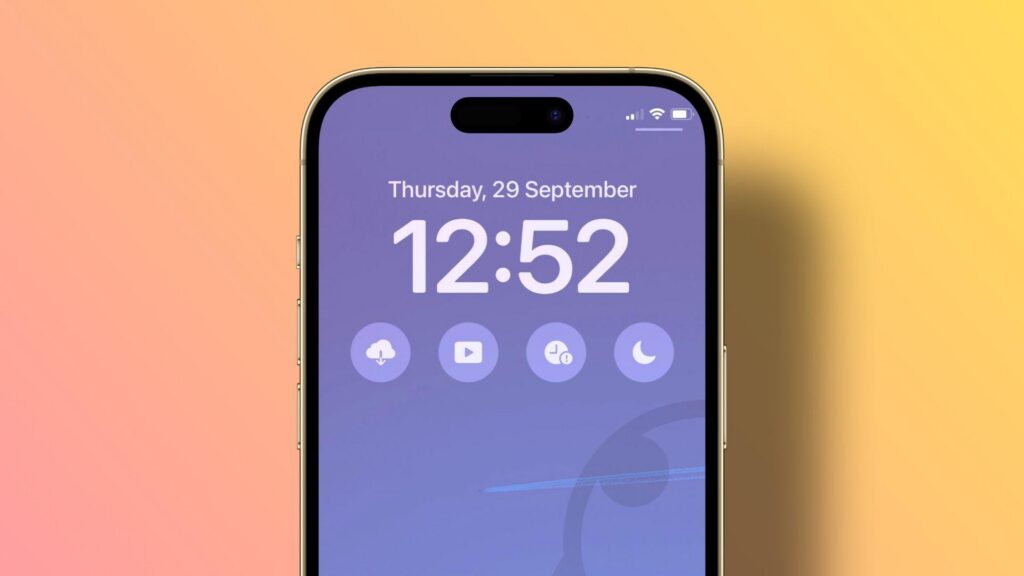
Lock Launcher is one of the best widgets for iPhone if speed matters more than information. Instead of showing data, it gives you instant actions from the Lock Screen or Home Screen.
You can launch apps, start shortcuts, call contacts, open camera tools, trigger smart home actions, or jump into specific workflows. For power users, that can turn your iPhone into a much faster control panel.
Why it stands out
- Excellent shortcut access
- Strong Lock Screen usefulness
- Good fit for one-tap workflows
- Flexible enough for both casual and advanced users
Best for
- Shortcut enthusiasts
- Busy users who repeat the same actions daily
- People who want faster access to contacts, apps, and routines
Pros and cons
| Pros | Cons |
|---|---|
| Saves time with one-tap actions | Less visually informative than data widgets |
| Great use of Lock Screen space | Requires setup to reach full value |
| Useful for app launchers and automation | Can overlap with Shortcuts app workflows |
A unique way to think about it
Most widget roundups focus on display widgets. Lock Launcher is different. It is an action widget. That makes it one of the best widgets for iPhone for users who care more about speed than looks.
Quick decision table
| If you want… | Choose… |
|---|---|
| The best design freedom | Widgetsmith |
| The best built-in option | Smart Stack |
| The best scheduling view | Fantastical |
| The best forecast visibility | CARROT Weather |
| The best task overview | Todoist |
| The best habit support | Streaks |
| The best commute help | Google Maps |
| The best quick audio access | Spotify |
| The best shortcut launcher | Lock Launcher |
One overlooked truth: the best widgets for iPhone are usually a mix of native Apple widgets and one or two third-party tools, not a Home Screen packed edge to edge.
Conclusion
The best widgets for iPhone help you do three things faster: see what matters, act with fewer taps, and make your Home Screen feel like yours. For most people, the sweet spot is a mix of Apple’s built-in tools and a few focused third-party picks.
If you want the safest all-around choice, start with Widgetsmith for design and Smart Stack for utility. Then add one specialty option like Todoist, CARROT Weather, or Lock Launcher based on your routine. That approach gives you a cleaner setup and better daily use. In short, the best widgets for iPhone are the ones you actually use every day, not just the ones that look good in screenshots.
Best iPhone Widgets FAQ
What are the best widgets for iPhone customization in 2026?
Widgetsmith is the top choice for iPhone customization, offering extensive design freedom with fonts, colors, photos, and interactive features for both Home and Lock Screens.
How does the Smart Stack widget improve daily iPhone use?
Smart Stack, built into iOS, automatically rotates widgets like weather and calendar based on your time and location, saving screen space and reducing the need for manual switching.
Which iPhone widget is best for managing busy schedules?
Fantastical is ideal for busy users, providing clear agenda views, natural language event creation, and combined tasks, weather, and calendar information all in one widget.
Can I improve my iPhone’s Home Screen battery life by choosing certain widgets?
Yes, using lighter setups with fewer widgets like Smart Stack and limiting data-heavy widgets (weather, traffic) helps conserve battery life on iPhones.
What is the best mix of widgets for students on an iPhone?
A recommended setup for students includes Smart Stack for versatility, Fantastical or Calendar for schedules, Todoist for task management, and Spotify for quick audio access.
Are Lock Screen widgets more useful than Home Screen widgets on iPhone?
Lock Screen widgets are great for instant checks and one-tap actions, while Home Screen widgets offer richer information like multi-line forecasts and detailed task lists, making both useful in different contexts.