If you’ve ever wanted to chat with PlayStation friends or PC squadmates while gaming on your console, you already know the pain: Xbox Party Chat just doesn’t cross the bridge. The good news? Microsoft and Discord finally shook hands, and we can now run Discord voice chat directly on Xbox Series XS and Xbox One.
In this guide, we’ll walk through exactly how to get Discord on Xbox, from linking accounts to transferring a live call from your phone, streaming gameplay into a voice channel, and fixing the audio issues that trip people up. Whether you’re 14 and squading up after school or 38 and sneaking in a midnight Halo session, the steps below take about five minutes start to finish.
What You Need Before Setting Up Discord on Xbox
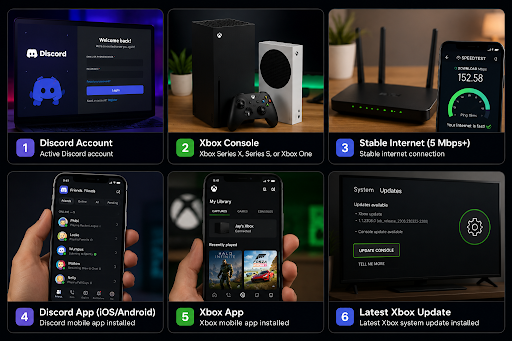
Before we jump into how to get Discord on Xbox, let’s run a quick gear check. Missing one of these will stall the setup at the QR-code step, so it’s worth two minutes to confirm.
| Requirement | Why It Matters |
|---|---|
| Active Discord account | The link handshake needs an existing username, not a guest profile |
| Xbox account on Series X, Series S, or Xbox One | Older Xbox 360 consoles aren’t supported |
| Stable internet (5 Mbps+ recommended) | Voice channels stream at ~64 kbps per user: streaming gameplay needs more |
| Discord mobile app (iOS 15+ / Android 8+) | Required to scan the pairing QR code |
| Xbox mobile app | Handles the call-transfer flow from phone to console |
| Latest Xbox system update | The Discord integration shipped in the March 2023 update and has been refined since |
One more thing: your Microsoft account must be 13 or older, and parental controls need to allow communication outside the friends list. If you’re on a child account, an adult will have to approve it from Family Settings first.
Step 1: Link Your Discord Account to Your Xbox Profile
Linking is the foundation of every other step. Until your two accounts know each other, none of the voice features will appear in the Xbox guide. We’ll cover both methods, console-first and app-first, so you can pick whichever device is closest.
Linking From the Xbox Console (Fastest Method)
This takes about 90 seconds if your phone is nearby.
- Press the Xbox button on your controller to open the guide.
- Go to Profile & system > Settings > Account > Linked social accounts.
- Highlight Discord and select Link.
- A QR code appears on your TV. Open your phone camera, scan it, and follow the link to Discord.
- Sign in (or tap Register to make a new account), then tap Authorize to grant permissions.
You’ll see a green confirmation on the Xbox screen within a few seconds. If the QR code times out, just back out and try again, it refreshes each time.
Linking From the Discord Mobile or Desktop App
Prefer to start from Discord? This route works the same way.
- Open Discord and tap your avatar to open User Settings (the cogwheel on desktop).
- Select Connections > Add (the plus icon).
- Choose Xbox > Continue.
- Sign in with your Microsoft credentials and tap Authorize.
Discord will pull your Xbox GamerTag automatically. From here, the Discord on Xbox integration is live, and we can move on to actually using it.
Step 2: Join a Discord Voice Channel Directly From Your Xbox
Once linked, we can hop into voice channels without ever touching our phone. This is the workflow most people want when they search for how to get Discord on Xbox.
- Press the Xbox button to open the guide.
- Scroll to Parties & chats.
- Select Discord, then choose a server from your list.
- Pick a voice channel and select Join Voice.
Within a couple of seconds, your headset audio routes through Discord instead of Xbox Party Chat. You’ll see a small Discord icon next to your gamertag in the guide, confirming the channel is active.
Pro tip: Pin your two or three most-used servers in Discord on your phone first. The Xbox guide mirrors that order, so your main squad’s server lands at the top of the list instead of buried under 30 community servers.
Step 3: Transfer an Active Discord Call From Your Phone to Xbox
Already mid-conversation on your phone and now booting up the console? No need to drop the call and re-join. Discord on Xbox supports a live transfer in under 10 seconds.
- While in a voice channel on the Discord mobile or desktop app, look for the phone + controller icon at the top of the call screen.
- Tap Join on Xbox (mobile) or Transfer Voice to Xbox (desktop).
- A QR code pops up. Open the Xbox mobile app and scan it.
- Tap Connect when prompted, then put on your gaming headset.
Your console takes over the call, and your phone’s mic mutes automatically so you don’t double-broadcast. We’ve found this especially handy when friends start a Discord call during a Netflix break and we want to slide right into a Warzone match without missing a beat.
If the Join on Xbox button is grayed out, your console is probably asleep or signed out, wake it up and try again.
Step 4: Stream Your Xbox Gameplay to a Discord Voice Channel
Streaming gameplay to your Discord buddies is one of the standout features of running Discord on Xbox. Friends watch your screen in real time, no Twitch account or capture card needed.
- With accounts linked and a Discord voice channel joined on your Xbox, open the guide and select Stream your game.
- Adjust the stream settings: resolution (up to 1080p at 60fps), bitrate, and whether to include party audio.
- Select Start stream.
Viewers in the channel will see a Live indicator and can click to watch. Stream latency runs around 1.5 to 3 seconds, which is fine for showing off a clutch play but not great for backseat speedrunning.
Heads up: Streaming is limited to Discord servers (not DMs), and only friends who are also in that voice channel can view. If your friends report a black screen, ask them to update their Discord client, the streaming codec was updated in late 2025.
Step 5: Display Your Xbox Activity and Game Status on Discord
Once we’ve linked the accounts, Discord automatically shows what we’re playing on Xbox, no extra setup required. Friends scrolling their friends list will see a green Playing Halo Infinite or Playing Forza Horizon 5 badge under our username, complete with playtime.
What shows up on your profile:
- Xbox GamerTag (visible on hover)
- Current game title with cover art
- Session playtime (resets when you close the game)
- Total hours played for select titles
Want to hide it? Open Discord > User Settings > Connections > toggle off Display on profile for Xbox. You stay linked for voice features, but the game status disappears.
This is a quiet little flex, your friends instantly know when you’re online and what you’re up to, which cuts down on the “yo, you on?” texts considerably.
Troubleshooting Common Discord on Xbox Issues
Even with a clean setup, things can hiccup. Here are the issues we see most often and how to fix them fast.
| Problem | Likely Cause | Fix |
|---|---|---|
| Discord doesn’t appear in Parties & chats | Account not linked or Xbox not updated | Re-link accounts: check for system updates |
| QR code won’t scan | Phone camera focus or expired code | Refresh the code, clean your lens |
| Can’t join voice channel | Server permissions | Ask the server admin to enable voice for your role |
| Stream button missing | Not in a Discord voice channel | Join a channel first, then open the guide |
| Game activity not showing | Display toggle off | Discord > Connections > enable Display on profile |
Friends Can’t Hear You or Audio Cuts Out
Mic problems are the #1 complaint with Discord on Xbox. Run through these in order:
- Verify the link. Settings > Account > Linked social accounts > confirm Discord shows Linked. Re-link if it looks off.
- Check privacy settings. Settings > Account > Privacy & online safety > Xbox privacy > View details & customize > Communication & multiplayer. Set You can communicate outside of Xbox to Everybody.
- Update both apps. An outdated Discord or Xbox firmware breaks the audio handshake.
- Restart the console. Hold the Xbox button on the front for 10 seconds, then power back on. This clears the audio cache.
- Test the headset elsewhere. Plug it into your phone or PC. If the mic fails there too, it’s hardware, not software.
- Confirm you’re 13+. Child accounts block Discord entirely. A parent must adjust Family Settings on account.microsoft.com/family.
Nine times out of ten, step 2 (privacy settings) is the culprit, especially on accounts originally created as teen profiles.
Frequently Asked Questions About Discord on Xbox
1. How to Get Discord on Xbox?
Ans. Link your Discord account to your Xbox profile via Settings > Account > Linked social accounts > Discord > Link. Scan the QR code with your phone camera, sign in to Discord, and authorize permissions. Once linked, Discord appears in Parties & chats on your Xbox.
2. What requirements do I need to set up Discord on Xbox?
Ans. You need an active Discord account, Xbox Series X|S or Xbox One, stable internet (5 Mbps+), Discord and Xbox mobile apps installed, and the latest Xbox system update. Your Microsoft account must be 13 or older, and parental controls must allow communication.
3. Can I transfer a Discord call from my phone to Xbox?
Ans. Yes. While in a Discord voice channel on your phone or desktop, tap ‘Join on Xbox’ or ‘Transfer Voice to Xbox’ (phone + controller icon). Scan the QR code with your Xbox mobile app and confirm. Your console takes over the call in under 10 seconds.
4. Why can’t my friends hear me on Discord through Xbox?
Ans. Most audio issues stem from privacy settings. Go to Settings > Account > Privacy & online safety > Communication & multiplayer and set ‘You can communicate outside of Xbox’ to Everybody. Also verify your Discord account is linked, update both apps, and restart your console.
5. How do I stream my Xbox gameplay to Discord?
Ans. Join a Discord voice channel on your Xbox, open the guide, and select ‘Stream your game.’ Adjust resolution, bitrate, and audio settings, then tap ‘Start stream.’ Friends in the voice channel see a Live indicator and can watch in real time.
6. Do my friends see what game I’m playing on Xbox when I use Discord?
Ans. Yes, Discord automatically displays your Xbox GamerTag, current game title with cover art, session playtime, and total hours played. To hide this activity, go to Discord > User Settings > Connections and toggle off ‘Display on profile’ for Xbox.