
If you’re using Microsoft 365, you’ve likely come across both OneDrive and SharePoint and wondered what the actual difference is.
While both tools store files in the cloud and even share the same underlying infrastructure, they are built for completely different purposes. Choosing the wrong one can lead to disorganized files, broken collaboration workflows, and long-term access issues for your team.
Here’s the simple answer:
- Use OneDrive for personal file storage and drafts
- Use SharePoint for team collaboration and shared documents
In this guide, we’ll break down the key differences between SharePoint vs OneDrive, when to use each, and how they work together with tools like Microsoft Teams, so you can choose the right solution for your workflow.
What Is OneDrive? (Personal Cloud Storage Explained)
OneDrive is Microsoft’s personal cloud storage solution for individuals within an organization. Think of it as your private digital desk drawer. Files stored in OneDrive are owned by you and are not accessible to others unless you deliberately choose to share them.
OneDrive is included with Microsoft 365 personal and business subscriptions. It syncs seamlessly across devices, Windows, Mac, iOS, and Android, making it easy to access your files from anywhere.
OneDrive is best suited for:
- Personal work files and drafts
- Documents you’re still working on before sharing
- Individual notes, records, and private data
- Files that belong to you, not a team
One important nuance: OneDrive for Business (the version tied to a Microsoft 365 work account) is technically different from the consumer OneDrive product, though they share the same interface and feel very similar to use.
What Is SharePoint? (Team Collaboration & Document Management)
SharePoint is Microsoft’s team-based content management and collaboration platform. It has been around since 2001 and has evolved far beyond simple file storage. SharePoint functions as an intranet, a document management system, and a collaboration hub for organizations of all sizes.
When you create a team in Microsoft Teams, a SharePoint site is automatically created in the background to store that team’s files. This happens without most users ever realizing it.
SharePoint is best suited for:
- Team or department document libraries
- Company-wide intranets and communication sites
- Shared resources that multiple people need to access regularly
- Formal document workflows, version control, and permissions management
- Project collaboration across departments
OneDrive vs SharePoint: Feature Comparison Table
To understand the differences between OneDrive vs SharePoint, it helps to look at a side-by-side comparison of their features, capabilities, and best use cases.
| Feature | OneDrive | SharePoint |
| Primary Purpose | Personal file storage | Team collaboration & content management |
| Ownership | Individual user | Team, department, or organization |
| Default Access | Private (you only) | Shared (team members) |
| Best For | Personal drafts & files | Shared documents & projects |
| Storage Limit | 1 TB per user (Microsoft 365) | 1 TB + 10 GB per license (org-wide) |
| Intranet Capabilities | No | Yes |
| Workflows & Automation | Limited | Yes (Power Automate integration) |
| External Sharing | Yes (with limits) | Yes (configurable by admin) |
| Version History | Yes (limited) | Yes (extensive) |
| Microsoft Teams Integration | Personal files tab | Team files tab (default backend) |
| Offline Access | Yes | Yes (via sync) |
| Custom Permissions | Basic | Advanced (granular control) |
Storage and Infrastructure: Are They Really Different?
Technically, OneDrive for Business and SharePoint use the same Microsoft cloud infrastructure. OneDrive is essentially a personal SharePoint site assigned to each user. This is why files shared from OneDrive can appear in SharePoint, and why both support similar sync features through the OneDrive desktop sync client.
However, from a user and admin perspective, they behave very differently in terms of access control, governance, and intended use.
SharePoint vs OneDrive: Which Is Better for Collaboration?
This is where the distinction matters most.
OneDrive allows you to share individual files or folders with specific people, either inside or outside your organization. It’s convenient for ad-hoc sharing sending a report to a colleague or collaborating on a single document. However, it’s still rooted in individual ownership. If the person who owns the OneDrive account leaves the company, their files may become inaccessible unless IT takes action.
SharePoint, by contrast, is built for persistent team collaboration. Documents stored in a SharePoint library are owned by the site, not by any individual. This means team files remain accessible even when members join or leave the organization. SharePoint also supports more granular permission levels you can control who can view, edit, or manage content at the site, library, folder, or even individual file level.
For any project or document that multiple people regularly work on, SharePoint is generally the better choice.
Version History and Document Management
Both platforms support version history, but SharePoint typically offers more robust document management features.
With SharePoint, you can:
- Set version limits and track a full history of changes
- Require check-in/check-out to prevent conflicting edits
- Apply metadata and content types to organize documents systematically
- Create approval workflows for document publishing
OneDrive offers version history as well, but it’s more limited in terms of governance features. It’s well-suited for personal document recovery but may not be adequate for regulated industries or formal document control processes.
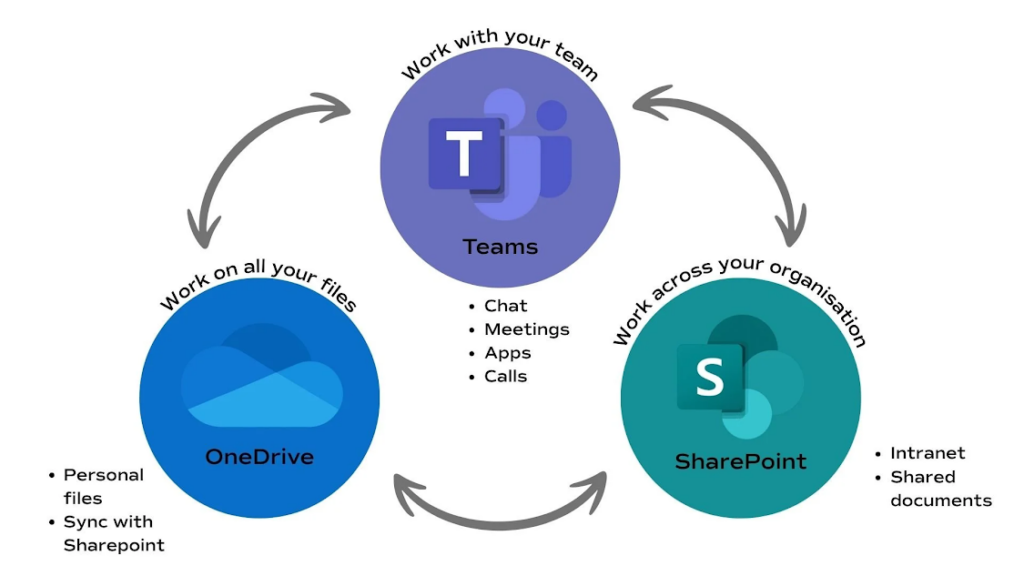
Microsoft Teams: How It Connects Both
Microsoft Teams has blurred the line between SharePoint and OneDrive for many users. Here’s how they each plug into Teams:
- The “Files” tab in a Teams channel is powered by SharePoint in the background. When your team uploads files to a channel, they’re actually stored in the corresponding SharePoint document library.
- The “Files” tab in a 1:1 or group chat stores files in OneDrive. These are personal or semi-personal exchanges, not formal team documents.
Understanding this distinction helps avoid confusion about where files actually live and who can access them.
When to Use OneDrive vs SharePoint (Real Use Cases)
Choosing the right platform depends on whether you’re working individually or as part of a team. Here’s a clear guide on when to use OneDrive and when SharePoint makes more sense.
When to Use OneDrive
Use OneDrive when:
- You’re working on a personal draft that isn’t ready to share yet
- You need to access your files across multiple personal devices
- You want to share a single file quickly with a specific person
- You’re storing personal records, notes, or reference material
- You’re working independently and don’t need team collaboration features
When to Use SharePoint
Use SharePoint when:
- You’re managing documents that a whole team needs to access
- You need structured document libraries with metadata and versioning
- You’re building an internal company intranet or knowledge base
- You need advanced permissions, for example, restricting certain folders to specific departments
- You’re setting up automated workflows or document approvals
- You want files to remain accessible even if a team member leaves
How SharePoint and OneDrive Work Together in Microsoft 365?
In most Microsoft 365 environments, OneDrive and SharePoint are designed to complement each other, not compete. You can also enhance your workflow by exploring productivity tools that integrate seamlessly with cloud storage and collaboration platforms.
A common and effective approach is:
- Draft in OneDrive – Start your document privately, work on it until it’s ready.
- Move or share to SharePoint – Once it needs team input or becomes an official team resource, move it to the appropriate SharePoint library.
You can also sync SharePoint libraries to your local device using the OneDrive sync client, which means SharePoint files can appear right alongside your personal OneDrive files in Windows Explorer or macOS Finder making the experience feel seamless.
SharePoint vs OneDrive for Business: Which Should Companies Use?
For small businesses with limited IT resources, the distinction may feel less critical but it still matters.
If you have a small team collaborating on shared documents, SharePoint (accessed through Microsoft Teams) is generally the more organized and sustainable approach. It prevents the “file lives in someone’s personal storage” problem that causes headaches when people change roles or leave.
OneDrive remains useful for individual employees to manage their own work, but relying on it as the primary team storage solution can create access and continuity issues over time.
SharePoint vs OneDrive for Enterprise
In larger organizations, the choice between SharePoint vs OneDrive becomes even more clear-cut. SharePoint is typically the standard for:
- Department document libraries
- HR, legal, and compliance documentation
- Company-wide intranets and communication sites
- Formal knowledge management systems
OneDrive handles personal productivity storage for individual employees, with IT policies often governing retention, sharing limits, and what happens to files when an employee leaves. Enterprise IT teams can also configure SharePoint vs OneDrive integration with Power Automate, Power Apps, and other Microsoft 365 tools to build custom document workflows.
Security and Compliance: SharePoint vs OneDrive
Both platforms benefit from Microsoft’s enterprise-grade security, including encryption in transit and at rest, multi-factor authentication, and compliance certifications (ISO 27001, SOC 2, HIPAA, GDPR, and others).
However, SharePoint gives administrators significantly more control over data governance, including:
- Site-level and library-level permissions
- Data loss prevention (DLP) policies
- Sensitivity labels and retention policies
- External sharing configurations per site
For industries with strict regulatory requirements, SharePoint’s more granular control is generally preferred.
SharePoint or OneDrive: Which One Should You Choose?
Both SharePoint and OneDrive are included in most Microsoft 365 plans you don’t typically pay for them separately.
- Microsoft 365 Personal/Family: Includes 1 TB OneDrive storage; does not include SharePoint (SharePoint is a business product).
- Microsoft 365 Business Basic, Standard, Premium: Includes both OneDrive for Business (1 TB per user) and SharePoint.
- Microsoft 365 Enterprise (E1, E3, E5): Includes both, with SharePoint storage pooled at 1 TB + 10 GB per licensed user.
If you’re on a business or enterprise plan, you already have access to both, the key is understanding SharePoint vs OneDrive and knowing which one to use for your files and collaboration needs.
Common Misconceptions
“OneDrive is just for personal use at home.” Not quite. OneDrive for Business is a professional tool included in Microsoft 365 business plans. It’s designed for workplace use, just focused on individual rather than team storage.
“SharePoint is too complicated for small teams.” SharePoint has become much more user-friendly, especially when accessed through Microsoft Teams. Most users interact with SharePoint daily without even realizing it.
“I should pick one or the other.” Most organizations use both – they serve different but complementary purposes. You don’t have to choose.
Frequently Asked Questions
1. Is SharePoint replacing OneDrive?
Ans. No. Microsoft continues to invest in both products. They serve different purposes and are designed to work together within Microsoft 365.
2. What happens to OneDrive files if an employee leaves?
Ans. By default, a former employee’s OneDrive files may become inaccessible after a grace period unless an IT admin transfers ownership. This is one reason why team files should typically live in SharePoint rather than an individual’s OneDrive.
3. Can I sync SharePoint to my desktop like OneDrive?
Ans. Yes. Using the OneDrive sync client, you can sync SharePoint document libraries to your local computer. They’ll appear in File Explorer or Finder alongside your personal OneDrive files.
4. Are SharePoint and OneDrive the same thing?
Ans. They share the same underlying infrastructure, but they’re designed for different use cases. OneDrive is personal storage; SharePoint is team and organizational storage.
5. Which is better for storing sensitive documents?
Ans. SharePoint generally offers more control over permissions and compliance settings, making it better suited for sensitive or regulated documents that require strict access management.
6. How does Microsoft Teams handle SharePoint vs OneDrive files?
Ans. Files shared in Teams channels are stored in SharePoint for team access, while files shared in private chats are stored in OneDrive for individual control. This setup keeps team and personal files organized.
7. Can external users access SharePoint?
Ans. Yes, SharePoint supports external sharing, which administrators can configure and restrict at the organization or site level.
Conclusion
SharePoint vs OneDrive are not rivals; they’re two parts of the same Microsoft 365 ecosystem, each designed for a distinct purpose. OneDrive is your personal workspace: private, fast, and ideal for your files. SharePoint is your team’s shared foundation: structured, permission-rich, and built to outlast any individual contributor.
The most effective Microsoft 365 users leverage both. They draft privately in OneDrive, collaborate formally in SharePoint, and let Microsoft Teams tie everything together. Understanding SharePoint vs OneDrive where your files live and why leads to better organization, stronger security, and smoother collaboration across your entire organization.