
Microsoft OneDrive is one of the
most widely used cloud storage services, offering seamless file access across
Windows, Mac, iOS, and Android devices. Whether you are backing up important
documents or collaborating with a team, knowing how to sync OneDrive correctly
is essential for a smooth experience.
This guide walks you through the
complete process of setting up OneDrive sync on Windows and Mac, selecting the
right folders, and resolving the most common sync errors that users typically
encounter. All information is based on verified Microsoft documentation and
widely accepted best practices.
What Is OneDrive Sync and How Does It Work?
OneDrive sync is the process by
which files stored in your cloud account are automatically updated across all
connected devices. When you add, modify, or delete a file in your OneDrive
folder on one device, those changes are generally reflected on all other
devices where OneDrive is installed and signed in.
The sync process runs in the
background and requires an active internet connection. Once a sync cycle is
complete, files may remain accessible offline depending on your settings.
How to Sync OneDrive on Windows
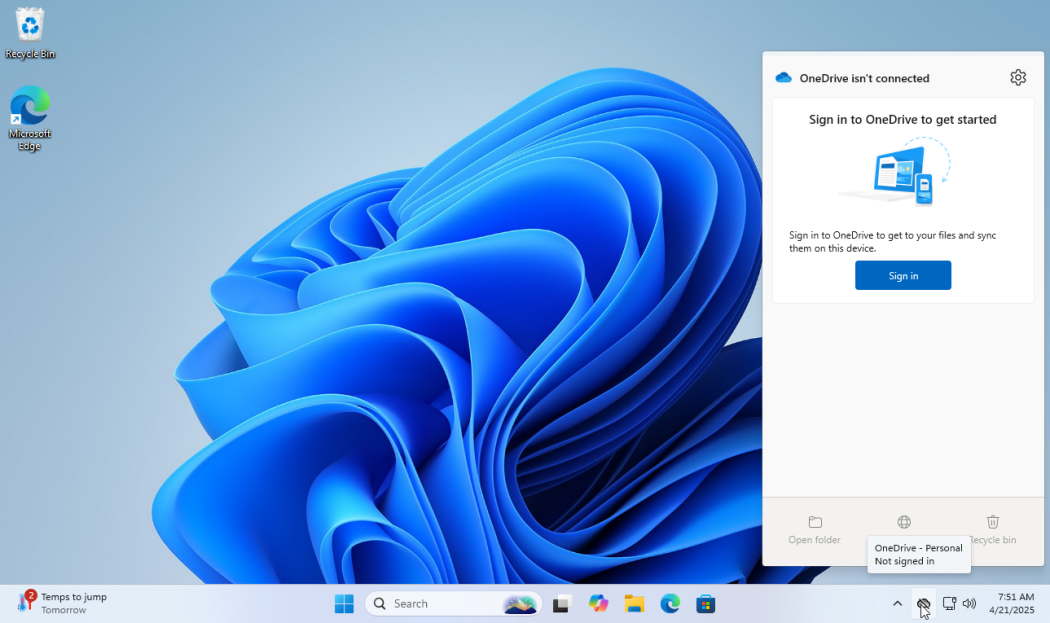
Windows 10 and Windows 11 include
the OneDrive sync app by default, so no additional installation is typically
required.
Step 1: Open OneDrive
- Click the Start button and search for
OneDrive. - Select the OneDrive application from the
results. - If prompted, enter your Microsoft personal
or work/school account credentials and click Sign In.
Step 2: Choose Your Sync Folder Location
During initial setup, OneDrive
will suggest a default folder location. You can change this by clicking Change
Location on the setup screen and selecting your preferred directory.
Step 3: Select Which Folders to Sync
- Click the OneDrive cloud icon in the system
tray (bottom-right corner). - Click the Help & Settings gear icon,
then select Settings. - Go to the Account tab and click Choose
Folders. - Check or uncheck folders based on what you
want available locally. - Click OK to apply the changes.
|
Note Certain folders such as |
Step 4: Enable Folder Backup (Known Folder Move)
OneDrive’s Folder Backup feature
(also called Known Folder Move) automatically backs up your Desktop, Documents,
and Pictures folders to the cloud. This is generally recommended for most users
as it protects against data loss.
- Open OneDrive Settings via the system tray
icon. - Go to Sync and Backup, then click Manage
Backup. - Toggle on the folders you want to back up
and click Start Backup.
Step 5: Use Files On-Demand to Save Storage
Files On-Demand is a feature that
lets you see all your OneDrive files in File Explorer without downloading them
to your device. Files are only downloaded when you open them, helping preserve
local disk space.
- Open OneDrive Settings.
- Under Sync and Backup, ensure Save space and
download files as you use them is enabled.
How to Sync OneDrive on Mac
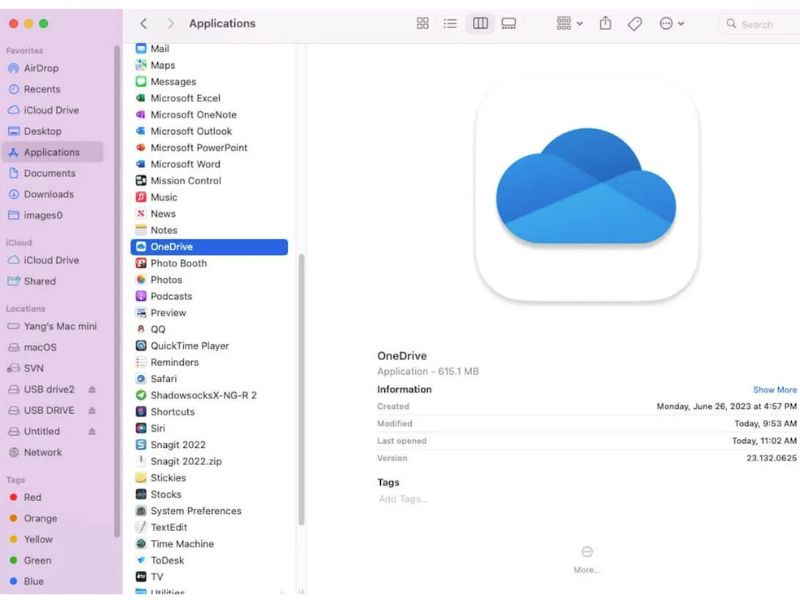
Mac users need to install the
OneDrive app separately before setting up sync. If you have the Mac App Store
version, it is typically recommended to uninstall it first and install the
standalone sync app from Microsoft’s website for full functionality.
Step 1: Download and Install OneDrive
- Visit
microsoft.com/microsoft-365/onedrive/download and download the Mac version. - Open the downloaded file and follow the
installation prompts.
Step 2: Sign In and Set Up
- Press Cmd+Space, type OneDrive, and open it
to start setup. - Enter your Microsoft account credentials and
click Sign In. - On the folder screen, you may click Change
Location to choose where your OneDrive files are saved locally.
Step 3: Enable Finder Integration
For macOS 10.10 and higher, you
can enable sync status overlays directly in Finder. Go to Apple logo >
System Preferences > Extensions, and toggle on OneDrive Finder Integration.
Step 4: Select Sync Folders on Mac
- Click the OneDrive cloud icon in the menu
bar. - Go to Help & Settings > Preferences.
- Under the Account tab, click Choose Folders.
- Select or deselect folders and click OK.
|
Tip Ensure OneDrive has Full Disk |
Understanding OneDrive Sync Status Icons
OneDrive uses icons to indicate
the sync status of your files and folders. Understanding these icons can help
you quickly identify sync issues.
|
Icon |
Meaning |
|
Blue circle |
Sync is in |
|
White cloud |
File is |
|
Green |
File is |
|
Solid green |
File is |
|
Red X or |
Sync error – |
|
Grey icon |
OneDrive is |
Common OneDrive Sync Issues and How to Fix Them
Below are the most frequently
reported OneDrive sync problems, along with verified solutions based on
Microsoft’s official support documentation.
1. OneDrive Not Syncing at All
This is typically one of the first
issues users encounter. Possible causes include no internet connection, the app
not running, or an account sign-in problem. In some cases, system-level display or startup problems may also interfere with background apps like OneDrive, so it may help to review the troubleshooting steps to fix a Black Screen on Windows or Mac if your desktop fails to load properly.
How to fix:
- Confirm your device has an active internet
connection. If using a VPN, try temporarily disconnecting from it. - Check that OneDrive is running by looking
for the cloud icon in the system tray or menu bar. - Right-click the OneDrive icon and select
Quit OneDrive, then reopen the application. - Restart your device to clear background
processes and refresh the sync connection.
2. OneDrive Sync Is Stuck or Slow
Sync may appear stuck if a very
large file is being uploaded, if there is a network bottleneck, or if the app
has a temporary processing issue.
How to fix:
- Pause syncing for 2 minutes and then resume:
click the OneDrive icon > Help & Settings > Pause Syncing. - Move a file out of the sync folder
temporarily to help clear any backlog, then move it back once sync resumes. - Check if a single large file (over 10 GB) is
causing the delay. OneDrive’s maximum single file upload size is generally 250
GB for Microsoft 365 accounts, but very large files take significantly longer.
3. File or Folder Not Syncing
Individual files may fail to sync
due to invalid characters in file names, path length exceeding limits, or file
type restrictions.
|
Restriction |
Details |
|
Invalid |
File names |
|
File name |
Temporary |
|
Path too long |
The full file |
|
File size |
Maximum 250 |
|
Restricted |
Certain |
* Always check
Microsoft’s official support page for the most current list of file
restrictions.
4. OneDrive Storage Full
If your OneDrive storage is full,
new files will not sync and you will typically see an error notification.
How to fix:
- Sign in to onedrive.live.com and review your
storage usage. - Delete unnecessary files or move them to a
local folder outside OneDrive. - Empty the OneDrive Recycle Bin, as deleted
files still count against your storage quota for a period. - Consider upgrading your Microsoft 365
subscription for additional storage.
5. Sync Errors After Windows or macOS Update
Operating system updates can
sometimes interrupt OneDrive’s background processes or affect permissions.
How to fix: After an OS update,
try restarting OneDrive manually. If the issue persists, update OneDrive itself
by clicking Help & Settings > Settings > About and checking for
updates. Keeping both the OS and the OneDrive app current generally reduces
update-related conflicts.
6. Sync Conflict Errors
Sync conflicts occur when the same
file is edited on multiple devices before OneDrive has a chance to sync the
changes.
How to fix: OneDrive typically
creates a copy of the conflicting file, appending the device name or the text
‘conflicted copy’ to the file name. You can then manually compare both
versions, keep the one you need, and delete the other.
How to Reset OneDrive to Fix Persistent Sync Issues
If none of the above steps resolve
your issue, resetting OneDrive is a reliable next step. According to Microsoft,
resetting OneDrive does not delete your files or data. It simply disconnects
all existing sync connections and restarts OneDrive with default settings,
after which a full sync will occur.
Reset OneDrive on Windows
- Press Windows + R to open the Run dialog
box. - Type the following command and press Enter:
%localappdata%\Microsoft\OneDrive\onedrive.exe /reset - If the OneDrive icon disappears from the
system tray, manually reopen OneDrive from the Start menu.
|
Important If you had chosen to sync only |
Reset OneDrive on Mac
- Quit OneDrive: Click the cloud icon in the
menu bar > Help & Settings > Quit OneDrive. - Open Terminal and paste the following reset
command: ~/Library/Application\
Support/OneDrive/OneDriveStandaloneUpdater.app/Contents/MacOS/OneDriveStandaloneUpdater
/reset - If the reset command is unavailable (common
with older app versions), drag the OneDrive app to Trash and reinstall from
Microsoft’s website. - Reopen OneDrive and sign in again to
re-establish sync.
Reset OneDrive on Android
- Open Settings on your Android device.
- Go to Applications > Manage Applications.
- Find OneDrive, tap Force Stop, then Clear
Data and Clear Cache. - Reinstall the OneDrive app from Google Play
if the issue continues.
How to Unlink and Relink OneDrive on Windows
Unlinking and relinking your
account is a common troubleshooting step that can resolve account-related sync
errors without affecting your cloud files.
- Click the OneDrive cloud icon in the system
tray. - Go to Help & Settings > Settings.
- Select the Account tab and click Unlink this
PC. - Confirm the action. OneDrive will sign out.
- Reopen OneDrive, sign back in with your
Microsoft account, and follow the setup prompts.
On Mac, the equivalent steps are:
click the OneDrive icon in the menu bar > Help & Settings > Preferences
> Account tab > Unlink this Mac. Sign in again to relink.
OneDrive Personal vs. OneDrive for Work or School: Key Sync Differences
|
Feature |
OneDrive |
OneDrive for |
|
Free Storage |
5 GB |
1 TB (with |
|
Max File Size |
250 GB |
250 GB |
|
Accounts per |
1 personal |
Multiple work |
|
Admin Control |
No |
Yes (IT |
|
Folder Backup |
Desktop, |
Configurable |
|
Files |
Yes |
Yes |
* Storage
limits and features may vary based on your Microsoft 365 subscription plan.
Check Microsoft’s current pricing page for the latest details.
Tips for Better OneDrive Sync Performance
- Keep file and folder names short and avoid
special characters. - Use selective sync to limit the number of
folders syncing locally, particularly on devices with limited storage. - Enable Files On-Demand to avoid downloading
files that are not needed offline. - Set bandwidth limits in OneDrive settings if
sync is slowing down your internet connection. - Regularly update the OneDrive app to benefit
from bug fixes and performance improvements. - Avoid storing files with very long paths
(over 400 characters) in OneDrive. - If using OneDrive for work, contact your IT
department before making changes, as some settings may be managed by your
organization.
Frequently Asked Questions (FAQs)
Does resetting OneDrive delete my files?
No. Resetting OneDrive only
disconnects existing sync connections. Your files in the cloud remain intact.
After the reset, OneDrive performs a full sync to restore local access.
Why is my OneDrive not syncing on Windows 11?
Common reasons include no internet
connection, the app not running, full storage, or a sign-in issue. Start by
restarting OneDrive, then check your storage and account status. If the problem
continues, try resetting the app using the Run command.
Can I sync OneDrive without downloading all files?
Yes. The Files On-Demand feature
allows you to see all your OneDrive files in File Explorer or Finder without
downloading them. Files are typically downloaded only when you open them.
What is the maximum file size I can sync with OneDrive?
For Microsoft 365 personal and
business accounts, the maximum individual file size is generally 250 GB. Files
above this limit cannot be uploaded or synced.
How do I fix a OneDrive sync error on Mac?
Start by quitting and restarting
OneDrive. If the issue persists, unlink your Mac account via Preferences >
Account > Unlink this Mac, then sign back in. You can also reset OneDrive
using the Terminal command or by reinstalling the app.
Can I sync OneDrive to a folder outside the default location?
Yes. During the initial setup
process, you can click Change Location on the folder screen to specify a
different local directory. This option is generally available on both Windows
and Mac.
Conclusion
Learning how to sync OneDrive
correctly is straightforward once you understand the setup process and know
what to do when things go wrong. Whether you are using Windows, Mac, or a
mobile device, OneDrive provides flexible tools for managing your files in the
cloud.
By following the steps in this
guide, you can set up OneDrive sync, choose which folders are available
locally, and resolve the most common sync issues without losing any data. For
situations that are not covered here, Microsoft’s official support page at
support.microsoft.com is a reliable reference for the most current
troubleshooting guidance.