
If you spend a significant amount of time browsing files in Google Drive, switching to dark mode may noticeably reduce eye strain, especially in low-light environments. Google officially rolled out built-in dark mode support for Google Drive on the web in April 2024, completing a feature that had already been available on Android and iOS
for some time.
Learn exactly how to enable Google Drive dark mode across all major platforms, including desktop
(web browser), Android, iPhone, or iPad, along with practical troubleshooting tips if the option does not appear for you.
What Is Google Drive Dark Mode?
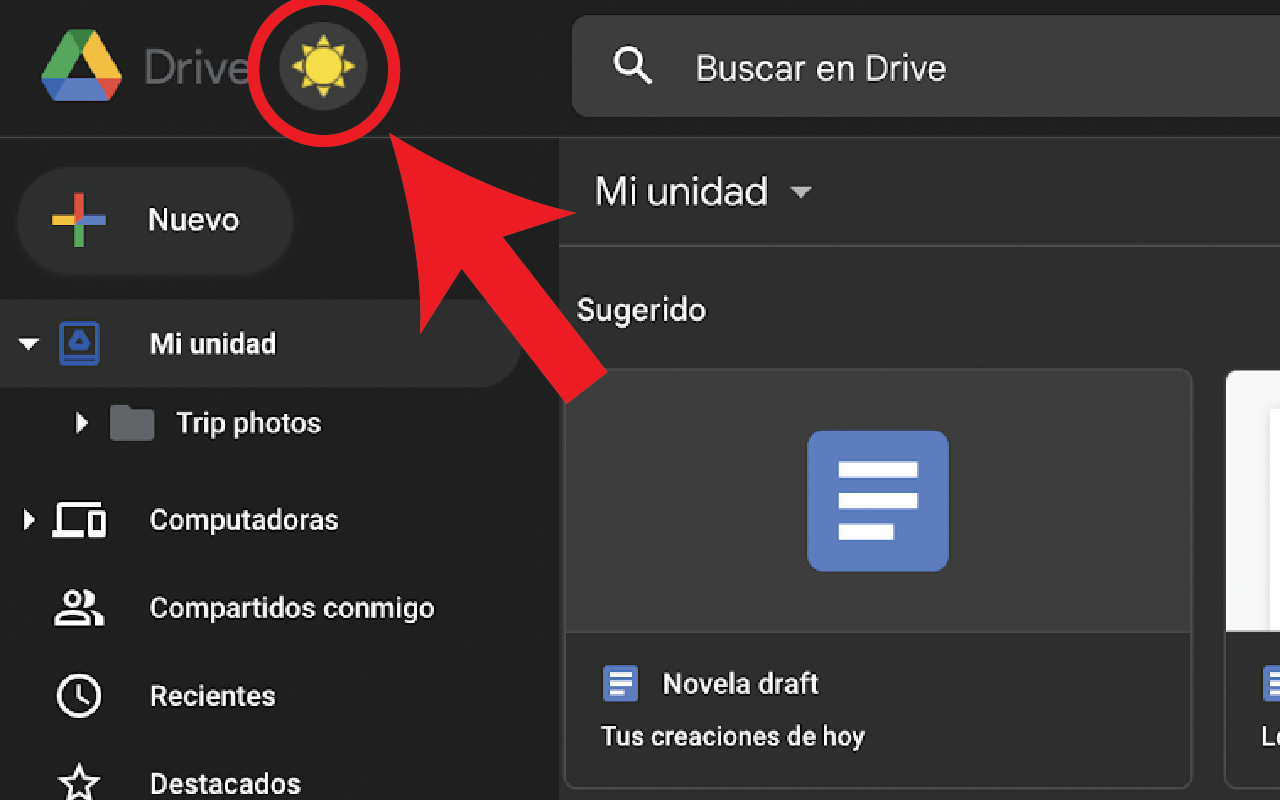
Google Drive Dark Mode is a
display theme that replaces the standard white-and-gray interface with a dark
background and lighter text. This is sometimes referred to as a dark theme or
night mode. On supported devices, users can typically choose between three
appearance options:
- Light: the default white background with
dark text - Dark: a dark background with light text
- Device default: automatically follows the
color scheme set on the operating system
Dark mode generally makes it
easier to work in dimly lit rooms, and may help reduce blue light exposure
before bedtime. On devices with OLED or AMOLED screens, it can also contribute
to longer battery life, since darker pixels use less power on those display
types.
When Did Google Drive Get Dark Mode?
Google Drive’s mobile apps
(Android and iOS) Supported dark mode for several years before the web version
followed. The web version of Google Drive began testing dark mode in select
regions in March 2024, and Google officially announced the full rollout
beginning April 16, 2024. As of now, dark mode is available for all Google
Drive users on desktop, Android, and iOS.
|
Platform |
Dark Mode |
Method |
|
Android App |
Several years |
In-app |
|
iOS / iPhone |
Several years |
Follows iOS |
|
Desktop / Web |
April 2024 |
In-app |
* Dark mode
availability may vary depending on your account type and whether updates have
been pushed to your region.
How to Enable Google Drive Dark Mode on Desktop (Web Browser)
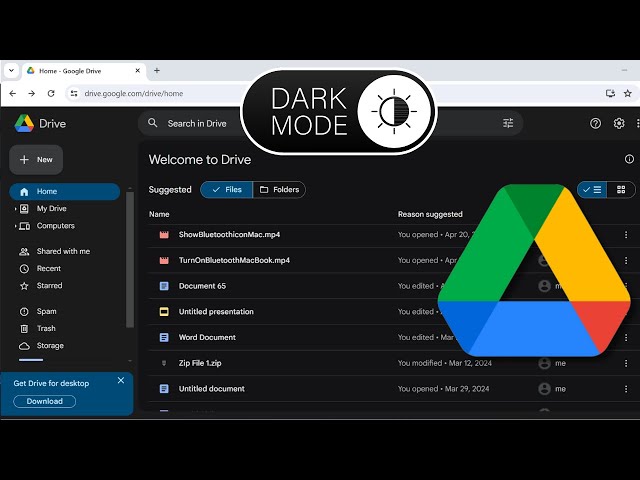
Google Drive’s web version now
includes a native dark mode setting. You do not need any third-party browser
extension to enable it, though extensions remain an option if the native
setting is unavailable on your account.
Steps to Turn On Dark Mode in Google Drive on Desktop
- Open Google Drive: Go to drive.google.com in your web browser and sign in to
your Google account. - Click the Settings (gear) icon: Located in the upper-right corner of the Google Drive
interface. - Navigate to Appearance: In the Settings panel, look for the
“Appearance” section. - Select Dark: Choose “Dark” to apply the dark theme. You can
also choose “Device default” to have Google Drive automatically match
your system-level appearance.
|
Tip: Use “Device Selecting |
What If the Google Drive Dark Mode Option Is Not Showing on Desktop?
If you do not see the Appearance
option in Settings, it is likely because the feature has not yet fully rolled
out to your account. In that case, the following alternatives may help:
- Install a dark mode browser extension such
as “Dark Reader” for Chrome, Firefox, or Edge - Check that Google Drive is not being
accessed through an older browser version; update your browser if needed - Sign out and sign back in to prompt a
settings refresh - Wait for the Google Drive app feature to roll out to your
account, as Google typically does this gradually
How to Enable Google Dark Mode on Android
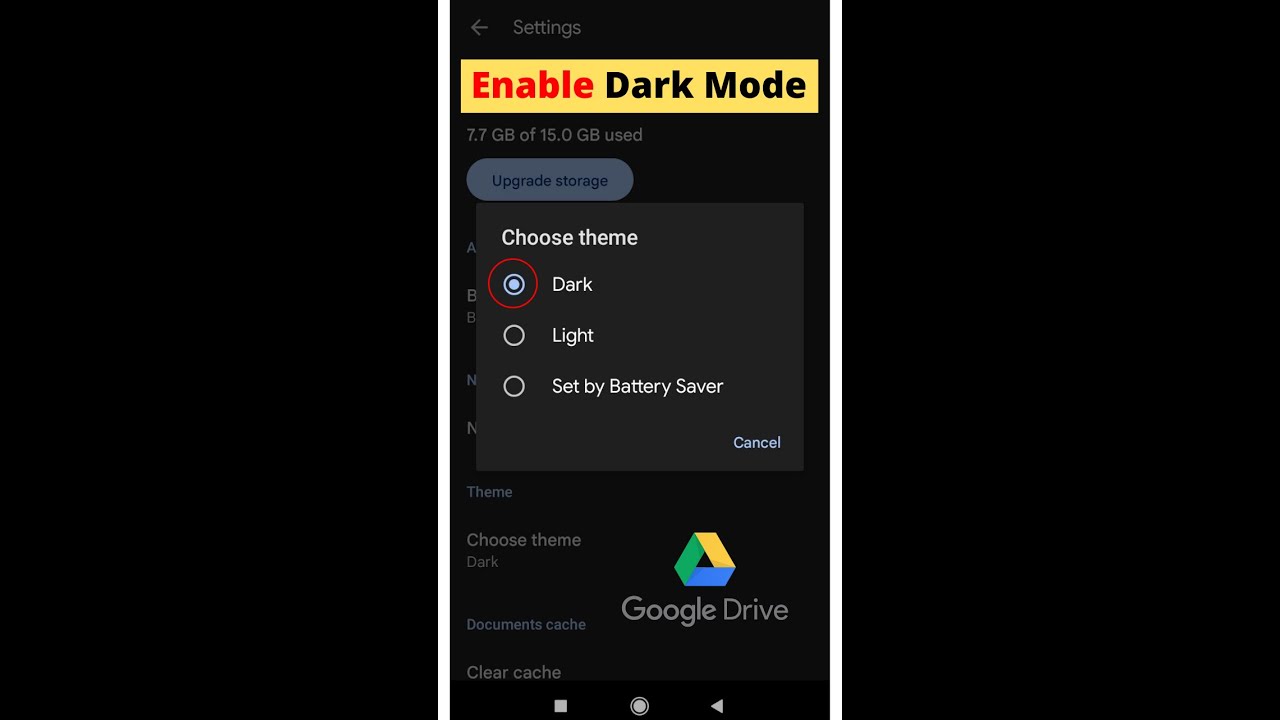
On Android, Google Drive supports
dark mode through a built-in theme setting inside the app. You can also
configure it to follow the system-wide dark mode setting on your phone or
tablet.
Steps to Turn On Dark Mode in the Google Drive Android App
- Update Google Drive: Open the Google Play Store, search for Google Drive, and
ensure you have the latest version installed. - Open the Google Drive app: Launch the app on your Android phone or tablet.
- Tap the Menu icon (three horizontal
lines): This is the hamburger icon in
the upper-left corner of the screen. - Tap Settings: Scroll down in the side menu and select Settings.
- Tap “Choose theme”: You will find this under the “Theme” heading
within the Settings screen. - Select Dark: Choose the “Dark” radio button to apply dark
mode. Alternatively, select “System default” to follow your Android
system theme.
|
Quick Summary: Android Open Google |
Using System-Level Dark Mode on Android
Instead of configuring dark mode
inside the app, you can set your entire Android device to dark mode. Google
Drive will then automatically switch to the dark theme when this system setting
is active.
- Go to Settings on your Android device
- Navigate to Display or Display &
Brightness - Toggle on Dark theme or Dark mode
- Open Google Drive to confirm the theme has
updated automatically
Android 10 and later versions
support system-wide dark mode. On Android 10+, you can also schedule dark mode
to turn on automatically at certain times, such as at sunset or during specific
hours.
How to Enable Google Drive Dark Mode on iPhone and iPad
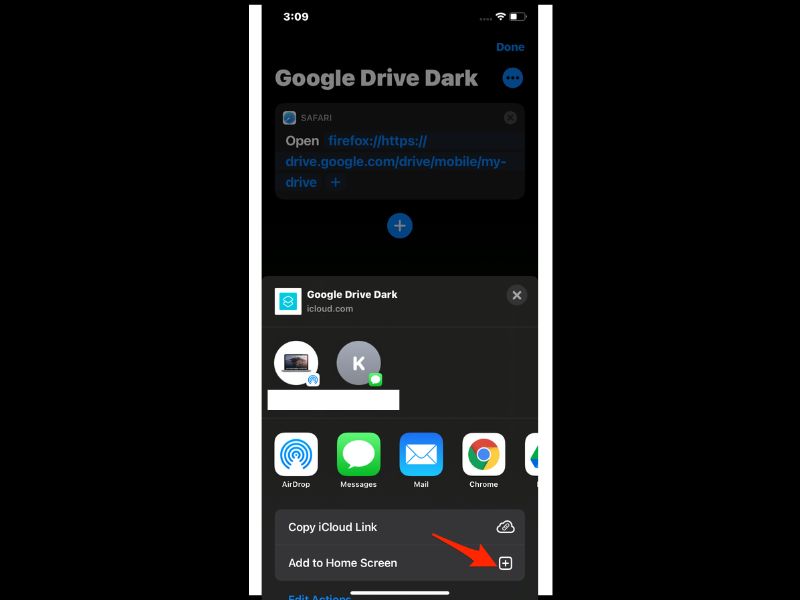
On iPhone and iPad, Google Drive
dark mode works differently from Android. The app does not include a standalone
theme toggle. Instead, it follows the system-level dark mode setting on iOS.
This means you need to enable dark mode on your iPhone or iPad first, and the
Google Drive app will automatically adjust its appearance.
|
Important Requirement Dark Mode |
Steps to Enable Dark Mode for Google Drive on iPhone
- Open the Settings app: Tap the Settings icon on your iPhone or iPad home screen.
- Tap Display & Brightness: This option is typically near the top of the Settings
menu. - Select Dark under Appearance: Tap the “Dark” option to switch the system
theme. - Open the Google Drive app: The app should now display in dark mode automatically.
Enabling Dark Mode Quickly via Control Center (iPhone)
A faster method to toggle dark
mode on iPhone without going through Settings:
- Swipe down from the top-right corner of the
screen to open Control Center - Press and hold the brightness slider
- Tap the Dark Mode button that appears at the
bottom of the brightness panel
Scheduling Dark Mode on iPhone
iOS also allows you to schedule
dark mode so it activates automatically. To set this up, go to Settings >
Display & Brightness, toggle on “Automatic,” and then tap
“Options” to choose between Sunset to Sunrise or a custom schedule.
Google Drive will follow this schedule automatically.
Google Dark Mode: Platform Comparison
|
Feature |
Desktop |
Android |
iPhone / |
|
Built-in dark |
Yes (from |
Yes |
Follows iOS |
|
System-level |
Yes (Device |
Yes (System |
Yes |
|
Standalone |
Yes |
Yes |
No |
|
iOS version |
Not |
Not |
iOS 13 or |
|
Third-party |
Only if |
No |
No |
|
Scheduled |
Via OS |
Via Android |
Via iOS |
* The iOS
version of Google Drive does not have an in-app theme toggle. It relies
entirely on the iOS system-level dark mode setting.
Benefits of Using Dark Mode in Google Drive
|
Benefit |
Details |
|
Reduced eye |
Dark |
|
Better |
On OLED and |
|
Less blue |
Darker |
|
Improved |
Some users |
|
Aesthetic |
Many users |
Troubleshooting: Dark Mode Not Working on Google Drive
If you encounter issues enabling
dark mode in Google Drive, the following steps may help resolve them.
Google Dark Mode Option Not Appearing on Desktop
- Verify that you are accessing Google Drive
from a modern, up-to-date browser (Chrome, Firefox, Edge, or Safari) - Clear your browser cache and reload
drive.google.com - Sign out of your Google account and sign
back in - If the option still does not appear, the
feature may not have been pushed to your account yet; use a browser extension
as a temporary workaround
Google Drive Dark Mode Not Working on Android
- Make sure the Google Drive app is updated to
the latest version from the Google Play Store - If the app crashes or behaves unexpectedly
after enabling dark mode, try clearing the app cache (Settings > Apps >
Google Drive > Storage > Clear Cache) - Reinstalling the app may resolve persistent
dark mode bugs
Dark Mode Not Showing on iPhone
- Confirm that your iPhone or iPad is running
iOS 13 or a later version - Make sure iOS system dark mode is actually
enabled (Settings > Display & Brightness > Dark) - Force-close the Google Drive app and reopen
it after enabling system dark mode - If the app still appears in light mode, try
updating the Google Drive app from the App Store
|
Note If none of |
Key Takeaways
|
Platform |
How to |
|
Desktop / Web |
Settings |
|
Android |
Menu > |
|
iPhone / iPad |
iOS Settings |
Frequently Asked Questions (FAQs)
Does Google Drive have dark mode on the web?
Yes. Google Drive added native
dark mode support for the web version in April 2024. You can enable it by going
to Settings > Appearance > Dark in Google Drive on your browser.
How do I turn on dark mode in Google Drive on Android?
Open the Google Drive app, tap the
Menu icon (three lines) in the top-left corner, go to Settings, tap
“Choose theme,” and select “Dark.” You can also choose
“System default” to follow your device’s dark mode setting.
Why does Google Drive not have a dark mode toggle on iPhone?
Unlike the Android app, the Google
Drive iOS app does not include a standalone dark mode toggle. The app follows
the system-level appearance setting on your iPhone or iPad. To enable dark mode
in Google Drive on iPhone, you need to turn on dark mode in iOS Settings under
Display & Brightness.
What iOS version is required for Google Drive dark mode?
Dark mode in the Google Drive iOS
app is only available on iOS 13 and above. Devices running older iOS versions
may not support this feature.
Can I schedule dark mode for Google Drive?
Google Drive itself does not have
a built-in schedule feature. However, both Android and iOS allow you to
schedule system-wide dark mode. Since Google Drive can follow the system
default, scheduling dark mode at the OS level will effectively apply a schedule
to Google Drive as well.
What if Google Drive dark mode is not available on my desktop?
If the Appearance option does not
appear in your Google Drive settings, the feature may not have been rolled out
to your account yet. In the meantime, you can install a dark mode browser
extension such as Dark Reader, which is available for Chrome, Firefox, Edge,
and other major browsers.
Does dark mode in Google Drive affect the appearance of documents?
Dark mode in Google Drive changes
the color of the Drive interface itself, including the file browser, sidebar,
and navigation. It does not necessarily change the appearance of documents
opened within Google Docs, Sheets, or Slides. Those applications have their own
separate appearance settings.
Conclusion
Enabling Google Drive dark mode is
a straightforward process once you know where to look. On a desktop, it takes
just a few clicks through the Settings menu. On Android, the in-app theme
selector gives you direct control. On iPhone and iPad, the process requires
enabling dark mode at the iOS system level, after which Google Drive
automatically adapts.
Whether you prefer dark mode for
comfort, aesthetics, or battery efficiency, the feature is now fully available
across all major platforms. If the native option does not appear on your
desktop, a browser extension can serve as a reliable alternative until the
setting becomes available on your account.