
If a game on your iPhone won’t truly reset, you’re usually dealing with more than one kind of saved data. Some progress lives on the device, some sits in iCloud, and some is tied to Game Center, Apple ID, Facebook, or another login. That’s why simply deleting the app often doesn’t work.
In this guide, you’ll learn how to delete game data on iPhone the right way for your situation, whether you want to clear storage, erase saved progress, or start a game from scratch. The steps below are simple, current for iOS 17+, and designed to help you avoid accidentally restoring the same old save again.
Check Where The Game Data Is Stored Before You Delete Anything
Before you try how to delete game data on iPhone, first figure out where the game is saving your data. This matters because local app data, iCloud saves, and account-based progress are deleted in different ways.
Start here:
- Go to Settings > General > iPhone Storage
- Find the game and check how much space the app and its documents/data use
- Then go to Settings > [your name] > iCloud > Manage Account Storage
- Look for the game in the iCloud list
If the game appears in iPhone Storage, it has local data on your device. If it appears in iCloud Storage, it may also be syncing saves across your Apple devices.
| Storage location | What it usually contains | What happens if you delete it |
|---|---|---|
| iPhone Storage | App files, cache, local progress | Removes device-stored data |
| iCloud Storage | Synced saves, settings, backups | Removes cloud-stored progress |
| Linked account | Progress tied to Game Center, Facebook, or app login | Can restore data after reinstall |
This first check makes how to delete game data on iPhone much easier, because you’ll know whether you need a quick delete or a full reset.
Delete The Game From Your IPhone To Remove Local Data
If your goal is to clear local files, the fastest method in how to delete game data on iPhone is deleting the game itself.
Here’s how:
- Press and hold the game icon on the Home Screen
- Tap Remove App
- Tap Delete App
- Confirm the deletion
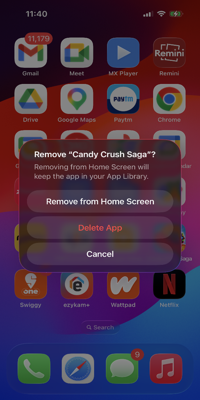
This removes the app and its locally stored data from your iPhone. For many offline games, that’s enough to wipe progress and free up storage.
But there’s an important catch: Offload App is not the same as Delete App. Offloading keeps documents and saved data, so the game may come back exactly as it was.
| Option | Removes app | Removes local data | Best for |
|---|---|---|---|
| Offload App | Yes | No | Saving storage without losing data |
| Delete App | Yes | Yes | Trying to reset or erase local game data |
If you’re testing how to delete game data on iPhone for a stubborn game, always choose Delete App, not offload. Then restart your iPhone before reinstalling for a cleaner reset.
Remove The Game’s Saved Data From ICloud
If the same progress returns after reinstalling, iCloud is often the reason. A complete method for how to delete game data on iPhone usually includes deleting the game’s cloud save too.
Follow these steps:
- Open Settings
- Tap [your name]
- Tap iCloud
- Tap Manage Account Storage
- Select the game
- Tap Delete Data
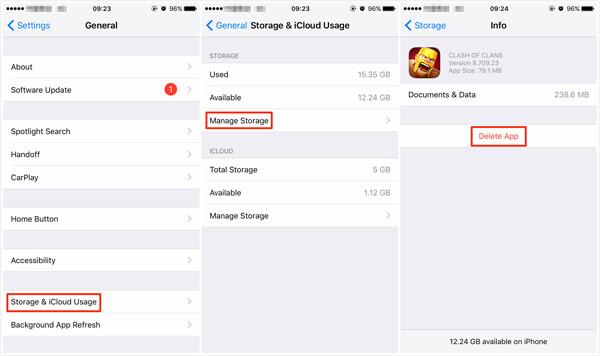
This removes the game’s saved data from iCloud, which can include synced progress, settings, and other stored app information.
A few games also restore purchase-related items through the App Store or their own servers, so deleting iCloud data won’t always remove everything tied to your account.
| What deleting iCloud game data affects | Usually removed? |
|---|---|
| Synced game progress | Yes |
| Cloud-stored settings | Yes |
| Local data still on device | No |
| Purchases tied to Apple ID | Usually no |
For many users searching how to delete game data on iPhone, this is the missing step. If you skip iCloud cleanup, reinstalling the app may just pull the same save file right back.
Reset Game Progress From Inside The App Or Linked Account
Some games include their own reset tools, and this can be the cleanest path for how to delete game data on iPhone. Instead of fighting iOS storage, you erase the progress at the source.
Open the game and look for:
- Settings or a gear icon
- Log Out
- Erase Data
- Reset Progress
- Delete Account or Start Over
Games with online profiles often store your progress on their own servers. In those cases, deleting the app alone won’t help much. You need to remove or reset the account-linked save.
A practical example: sports, puzzle, and multiplayer titles often sync to a publisher account. If you sign back in, your old profile returns instantly.
A smart reset check before you confirm
Before you tap any erase button, verify whether the game warns that the action is permanent. Some apps delete progress but keep cosmetics or purchases: others wipe everything.
If you want the most reliable answer to how to delete game data on iPhone, check both the in-game settings and any linked account page before reinstalling.
Disconnect Game Center, Apple ID, Facebook, Or Other Linked Logins
Linked logins are one of the biggest reasons how to delete game data on iPhone seems harder than it should be. Even after you delete an app, your progress can come back as soon as you reconnect the same account.
To reduce that risk, sign out or unlink before reinstalling.
Common places to check:
- Settings > Game Center to sign out
- Settings > [your name] > iCloud to review sync options
- The game’s own settings for Facebook, Google, Apple ID, or publisher account connections
If the game has a Connected Accounts or Linked Services menu, remove those connections first. Some titles automatically reload your progress the moment they detect the same login.
| Linked service | Where to disconnect | Why it matters |
|---|---|---|
| Game Center | iPhone Settings | Can restore achievements and profile-linked progress |
| Apple ID/iCloud | iPhone Settings | May sync cloud saves automatically |
| In-app settings or Facebook permissions | Can reconnect old saves | |
| Game publisher account | In-app account settings | Often stores the main progress data |
When people ask how to delete game data on iPhone, this is often the overlooked fix.
Troubleshoot When Game Data Keeps Coming Back After Reinstalling
If you’ve tried the basics and the game still reloads your old progress, you need a more complete version of how to delete game data on iPhone.
Work through this order:
- Delete the app from your iPhone
- Remove the game’s iCloud data
- Sign out of Game Center
- Disconnect Facebook, Apple ID, or other linked logins inside the game account, if possible
- Restart your iPhone
- Reinstall the game from the App Store
- Open it without reconnecting the old account right away
Why the data comes back
Usually, one of three things is happening:
- The game is syncing from iCloud
- The progress is stored on the developer’s servers
- You used Offload App instead of full deletion
A less-common issue most articles miss
Some games restore data from app-specific server snapshots after a short delay. So if you reinstall and immediately sign in again, it can look like your delete attempt failed, when really the server just pushed your save back.
That’s why a true how to delete game data on iPhone process often means deleting first, unlinking second, and signing back in last.
Choose The Right Reset Option And Reinstall The Game Cleanly
The best method for how to delete game data on iPhone depends on what you actually want: more storage, fresh progress, or a total account reset.
Use this quick guide:
| Your goal | Best option |
|---|---|
| Free up space only | Delete the app from iPhone |
| Remove local progress | Delete the app, then reinstall |
| Remove synced cloud saves | Delete app + delete iCloud data |
| Start completely over | Delete app + delete iCloud data + unlink/log out of all connected accounts |
When you reinstall, download the game fresh from the App Store. Avoid restoring from a backup if your goal is a full reset. And don’t reconnect Game Center, Facebook, or the same publisher account until you’re sure the game has started as new.
If you’ve been searching how to delete game data on iPhone, the main takeaway is simple: deleting the app is only one piece. The clean reset comes from removing the right data source, local, iCloud, or account-based, before reinstalling.
Once you match the reset method to the way the game stores data, the process gets much easier and a lot less frustrating.
How to Delete Game Data on iPhone: Frequently Asked Questions
How do I delete game data stored locally on my iPhone?
To delete local game data, press and hold the game icon on your Home Screen, tap Remove App, then Delete App, and confirm. This removes the app and all local files, clearing your progress stored on the device.
Can deleting an iPhone game app remove my cloud-synced game progress?
No, deleting the app only removes local data. To delete cloud-synced game progress, go to Settings > [your name] > iCloud > Manage Account Storage, select the game, and tap Delete Data to remove saved progress stored in iCloud.
Why does my game data keep coming back after reinstalling the app on my iPhone?
Game data may reappear if it’s stored in iCloud, linked accounts like Game Center or Facebook, or on the developer’s servers. To fully reset, delete the app, remove iCloud data, sign out of linked accounts, restart the iPhone, then reinstall the game.
How can I fully reset my game progress on iPhone including online accounts?
Delete the app, remove the game’s saved iCloud data, log out or unlink all accounts like Game Center, Facebook, and the game’s own account, then reinstall the app fresh without restoring from backup to start completely over.
What is the difference between offloading and deleting a game app on iPhone?
Offloading an app deletes the app but keeps its documents and data, so game progress remains. Deleting an app removes both the app and all local data, which helps when you need to reset or erase game progress.
Can I reset game progress from inside the app without deleting it?
Yes, many games have options within their settings to log out, erase data, or reset progress. Check the game’s settings or account menu for these reset features to erase progress without uninstalling the app.